What a shadow catcher does
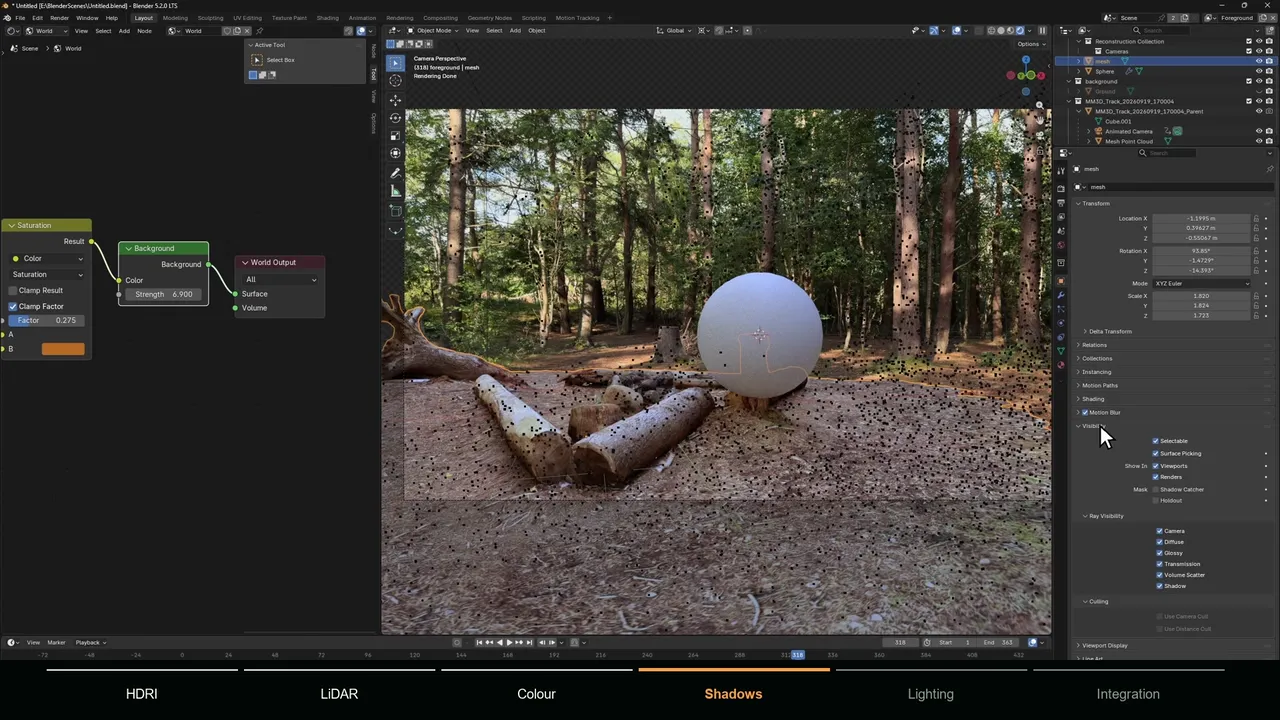
A shadow catcher is geometry that stands in for a real surface in the footage, usually the ground. It is invisible in the render except for what your CG adds to it: the object's shadow and, with the right setup, bounce light and reflections. Blender's tooltip puts it this way: objects with the setting are considered to already exist in the footage, objects without it are synthetic objects being composited into it.
Where the synthetic objects change nothing, the catcher is transparent. Where your object blocks the sun, it records a shadow. The catcher still affects the CG: the Blender manual notes that it interacts with CG objects through indirect light, so its material shows up in reflections and bounce light on your object.
How to set up a shadow catcher in Cycles
- 1 Render with Cycles
Shadow Catcher is a Cycles option. In EEVEE the checkbox is not shown, and an object that has it renders as a normal surface.
- 2 Add geometry where the real ground is
A plane on the tracked ground points works for flat floors. For uneven ground, use a scan or reconstructed mesh aligned to the camera solve. It only has to be accurate where the shadow falls.
- 3 Enable Shadow Catcher
Select the geometry, open Object Properties > Visibility and tick Shadow Catcher under Mask.
- 4 Make the film transparent
In Render Properties > Film, enable Transparent. The world still lights the scene but renders with zero alpha, so the footage can sit behind it.
- 5 Add a light that casts the shadow
An HDRI alone gives soft, often noisy shadows. A Sun lamp rotated to match the real shadows gives a clean one, as shown in how to add 3D objects to tracked footage.
- 6 Judge it in a final render
The manual notes that the viewport uses a simple approximation of the catcher, so render a frame with F12 before you judge it.
How to composite the shadow over your footage
There are two ways to get the shadow onto the plate, and one checkbox switches between them. I rendered the same scene both ways in Blender 5.2 to see what ends up where.
Method 1: Alpha Over only (Shadow Catcher pass off)
With the pass off, the Combined pass holds the CG object plus the shadow as dark, partly transparent pixels; in my test the shadow had an alpha of about 0.75. Put the footage behind it with one Alpha Over node and the shadow darkens the plate. Enough for many shots, but the shadow can only darken toward black. It cannot carry colored bounce light or reflections.
Method 2: multiply by the Shadow Catcher pass
Enable View Layer Properties > Passes > Light > Shadow Catcher. The catcher becomes fully transparent in the Combined pass and the shadow moves into the new pass: below 1 where the CG darkens the ground, 1 where nothing changes, above 1 where CG bounces light onto it. The Cycles 3.0 release notes describe the intended use: multiply the background by this pass, then lay the Combined pass over it.
- 1 Create the node tree
In the Compositor, click New in the header. Blender 5.2 starts you with Render Layers connected to Group Output and a Viewer.
- 2 Bring in the footage
Add Input > Movie Clip and pick your clip. If the render resolution differs from the clip, add Transform > Scale set to Render Size.
- 3 Multiply the footage by the pass
Add Color > Mix Color set to Multiply, with the footage in A, the Shadow Catcher output of Render Layers in B and Factor at 1.
- 4 Lay the CG on top
Add Color > Alpha Over with the multiplied footage in Background and the Render Layers Image in Foreground, and connect it to Group Output.
Blender 5.0 removed the old Composite node, so the final image comes from Group Output, and renamed the Alpha Over inputs to Background and Foreground (5.0 compositor notes). Older tutorials still explain the idea; only the node names changed.
Does EEVEE have a shadow catcher?
No. In Blender 5.1 and 5.2, EEVEE's Object Properties only offer Holdout under Mask, and an object with Shadow Catcher enabled (set while the engine was Cycles) renders as a normal opaque surface. That is the white or grey floor people run into. The usual workaround in older tutorials is a Shader to RGB trick, but there are cleaner options.
Option 1: holdout ground plus the Shadow pass
Set the ground to Object Properties > Visibility > Mask > Holdout and enable View Layer Properties > Passes > Light > Shadow. In my test the Combined pass then held only the CG object, with the ground cut out, while the Shadow pass still showed the shadow on the ground. The manual describes that pass as black where surfaces get no direct light and white where they do. In the compositor:
- A Mix Color node in Mix mode, with white in A and the Shadow pass in B. Its Factor sets the shadow density.
- A second Mix Color in Multiply mode to multiply the footage by the result.
- Alpha Over to lay the Combined pass on top.
Two limits. The pass only measures direct light, so the sky fill is up to your Factor. And it contains every shadow on the ground, including shadows the ground casts on itself, which on a bumpy scan double up with the real shadows in the plate. Use a smooth surface here, or Cycles.
Option 2: Shader to RGB
Give the ground a Diffuse BSDF, convert it with Shader to RGB and use the result, often through a Color Ramp, to drive a dark, partly transparent material. It works in the Combined pass, but the manual warns that Shader to RGB does not give expected results in render passes, and the look depends on how you tune the ramp.
Option 3: render only the shadow in Cycles
Keep EEVEE for the CG and add a new scene with Linked Copy, set to Cycles, with the ground as a shadow catcher and the Shadow Catcher pass on. In the EEVEE scene's compositor, add a second Render Layers node, set its Scene to the Cycles copy, and use its Shadow Catcher output as in Method 2. In my Blender 5.2 test, rendering the EEVEE scene also rendered the Cycles copy and delivered its pass to the comp.
How to catch reflections and bounce light
A catcher can carry light that CG adds to the ground, not only shadows. It needs the Shadow Catcher pass and a material that behaves like the real surface. In a test with a glossy catcher and a red, glowing cube, the red reflection appeared only in the Shadow Catcher pass, as values well above 1 in red and below 1 in green and blue. The Combined pass showed nothing on the floor. Multiplying the footage by the pass tints and brightens the plate exactly where the reflection falls.
For a wet road, a polished floor or a tabletop, give the catcher a Principled BSDF with a roughness close to the real surface and composite with Method 2. A matte catcher still carries soft bounce light: in the diffuse test, the ground next to the cube read slightly above 1.
Reflections on the CG object come from the HDRI and the catcher material, so a chrome sphere on a flat grey catcher reflects a flat grey floor. MotionMaster 3D Multi-Frame Texture Bake (Max) bakes the tracked footage from many camera positions into a permanent texture on reconstructed ground, so reflections show the real location. After a bake it also makes the receiving mesh a Cycles shadow catcher and turns off its Shadow ray visibility, with an opt-out for both.
How to use a scan or reconstruction as the catcher
A plane is fine for a flat floor. Uneven ground, steps, curbs or logs need the right shape, or the shadow floats above dips and cuts through bumps. The options, from cheapest:
- One or a few planes on tracked ground points. Good for floors, roads and tabletops.
- A phone LiDAR scan aligned to the camera solve, as in the integration tutorial. Accurate locally, but lined up by hand.
- Geometry from the reconstruction. MotionMaster 3D Mesh Generation builds a mesh from the dense point cloud, and Point Cloud Surface builds a floor or wall from selected points. Both are Max features and come from the same solve as the camera, so they are already aligned.
Only the area where shadows land needs to be accurate, so decimate heavy scans. The setting is per object: a scan imported as several pieces needs it on each one.
Why does my footage show in the viewport but not in the render?
Because camera background images are a viewport display only. The footage behind the scene in camera view comes from Camera Properties > Background Images and is never rendered. I checked with a test camera that had a bright red background image: no red pixel appeared in any render, with transparent film on or off.
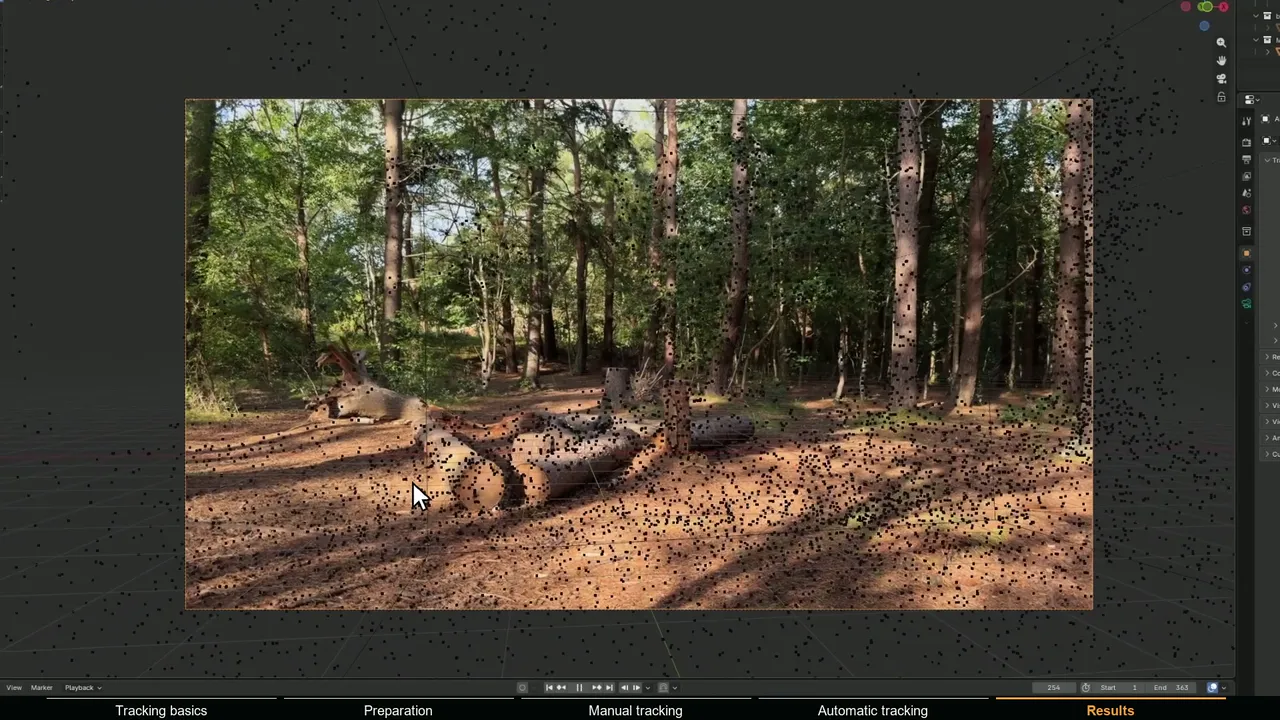
- Enable Render Properties > Film > Transparent.
- In the Compositor, add a Movie Clip node with the footage, or an Image node for an image sequence.
- Use Alpha Over with the footage in Background and the render in Foreground, connected to Group Output.
- Check that Output Properties > Post Processing > Compositing is enabled.
Setup Tracking Scene builds this graph with a Movie Distortion node that undistorts the plate. To keep the original lens look and distort the CG instead, see lens distortion in Blender. The rest of the shot is in the Blender VFX workflow.
Why is my shadow catcher not working?
It renders as a white or grey plane
Check the render engine first: EEVEE ignores the setting. In Cycles, check that the option is on the object you are looking at and that Film Transparent is on. With opaque film, my Cycles test showed the grey world color where the catcher was, with the shadow darkened into it. Solid and Material Preview shading always show the catcher as a normal object.
The shadow vanished when I enabled the pass
Expected: with the pass on, the shadow lives in the pass, not the Combined alpha. Multiply the footage by it, as in Method 2.
The shadow is too dark, too light or grey
Density depends on how much light the CG blocks compared with the light that still reaches the ground. A strong sun over a dim world gives near-black shadows; a bright HDRI fills them in. Match a real shadow in the plate by balancing sun strength against world strength, not in comp. Method 1 can only darken toward neutral black, which reads as grey on colored ground; Method 2 keeps the color of the remaining light.
The colors are wrong
Blender's default AgX view transform applies to the whole composite, plate included. In a Blender 5.2 test, an 8-bit plate value of 230 came out as 188 with AgX and unchanged with Standard, so set Render Properties > Color Management > View Transform to Standard for ordinary sRGB footage. Also give the catcher the color of the real ground: a default white catcher bounces light onto the CG from below.
The shadow is noisy
Soft HDRI shadows need many samples, and so does a sun with a large Angle. Let a Sun lamp carry the main shadow and keep the HDRI for fill. With denoising on, Cycles denoises the Shadow Catcher pass along with the image and keeps a separate Noisy Shadow Catcher pass.