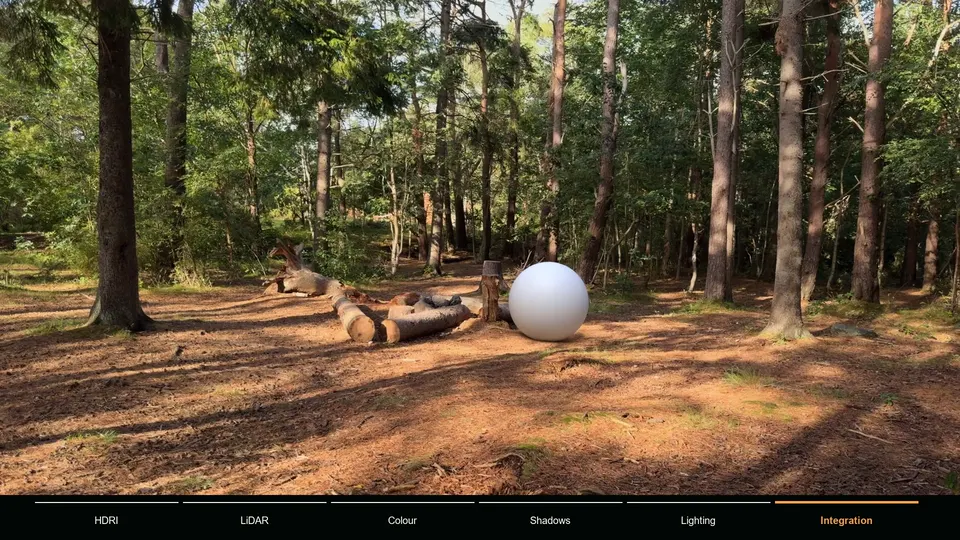
Here is the whole pipeline on one screen. Each stage gets its own section below, and the last column points to the guide that covers it in depth.
| Stage | Goal | Main Blender tools | Deep dive |
|---|---|---|---|
| 1. Plan and shoot | Footage the solver can read | Shutter speed, real camera movement, HDRI and measurements on set | How to shoot footage for tracking |
| 2. Track the camera | A virtual camera that matches the real one | Movie Clip Editor, Solve Camera Motion | Blender camera tracking |
| 3. Mask | Moving things out of the solve, foreground back over the CG | Disabled tracks, Mask mode, Mask node | How masks improve tracking |
| 4. Lens distortion | CG lines that bend like the plate | Lens panel values, Movie Distortion node | Lens distortion in Blender |
| 5. Scene setup | Real scale, a real floor, proxy geometry | Floor, Set Origin, Set Scale | Floor error guide |
| 6. Lighting | CG lit by the same environment | HDRI world, Sun lamp | Add 3D objects to footage |
| 7. Shadows and holdouts | Contact with the real ground, correct occlusion | Shadow Catcher, Holdout | Shadow catcher guide |
| 8. Passes | Separate pieces you can adjust | View layers, Shadow Catcher pass, Multi-Layer EXR | This guide |
| 9. Composite | CG over the plate | Movie Clip, Mix Color, Alpha Over, Group Output | This guide |
| 10. Match | CG no cleaner than the plate | Color Balance, Film Grain, Motion Blur | This guide |
| 11. Export | A file you can deliver | Output Properties, Media Type | This guide |
How to plan and shoot footage for VFX
Most failed VFX shots are decided before you open Blender. The tracker needs sharp detail, real camera movement and a mostly static scene. The integration needs to know what the light looked like. On set, that means:
- A fast enough shutter. Motion blur wipes out trackable detail; see what makes footage good for camera tracking.
- Real camera movement for a camera solve. Walk, dolly or crane. A shot that only pans from one spot needs a tripod solve.
- An HDRI from where the CG will sit, captured right after the take. A phone HDRI app or a 360 camera both work.
- A few measurements: camera height, the distance between two marks on the ground, the focal length. They become your scene scale.
- A LiDAR scan of the ground if the effect touches it, for a shadow catcher with the right shape.
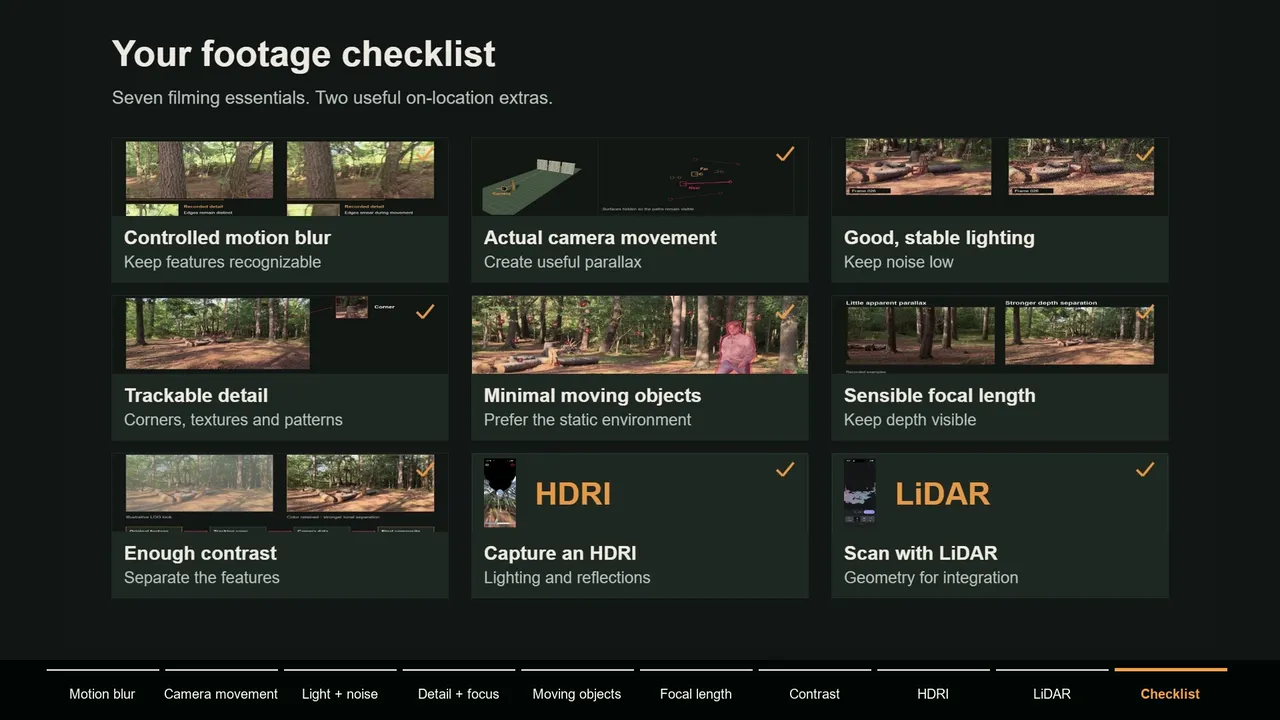
Camera and phone settings are in how to shoot footage for camera tracking.
How to track the camera in Blender
Load the clip in the Movie Clip Editor and give the scene the same frame rate and render resolution; a mismatch is the classic cause of a camera that drifts out of sync. Enter the real sensor width and focal length in the sidebar's Track tab, in the Camera panel and its Lens subpanel.
Then track features through the shot, delete the ones that slide or sit on moving things, and click Solve Camera Motion in the toolbar's Solve tab. Blender's manual calls a solve error below 0.3 px accurate; for VFX, aim for under about 1 px and check with a test object. The Blender camera tracking guide covers every setting, and how to fix a high solve error covers a bad number.
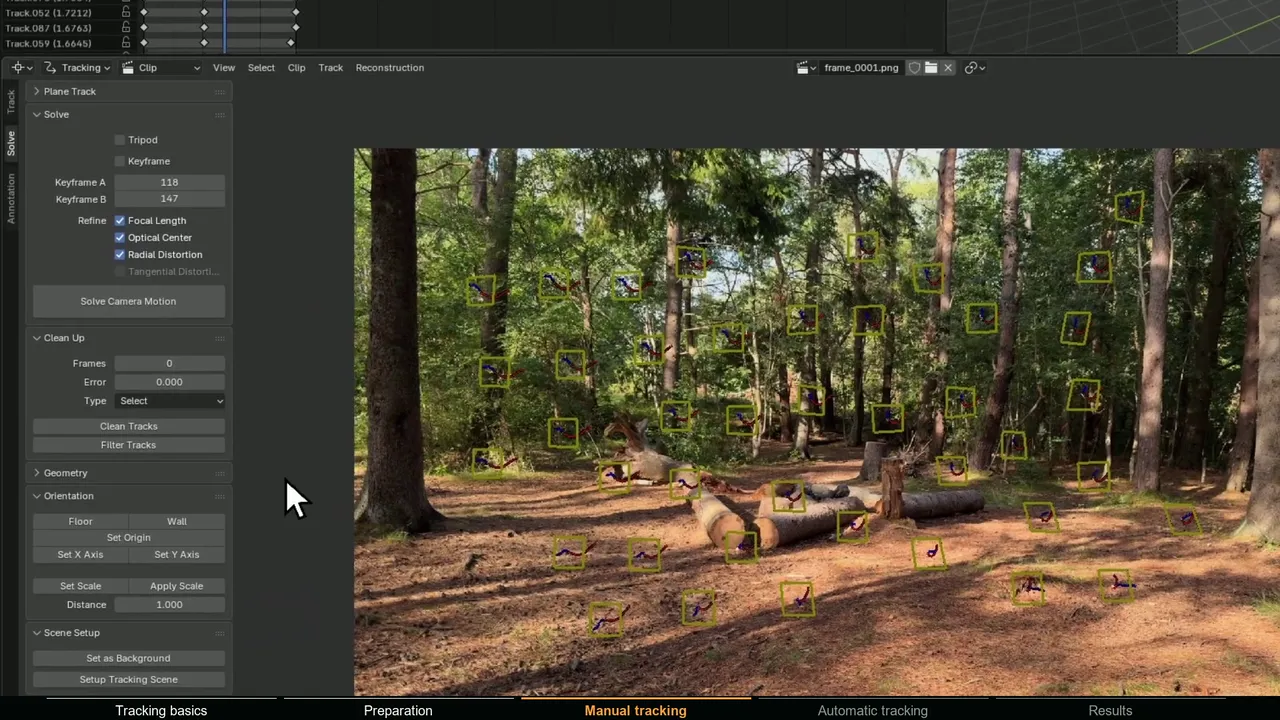
When the solve is good, Setup Tracking Scene in the Scene Setup panel of the same tab adds a Camera Solver constraint to the scene camera, copies the focal length and sensor width, creates a ground plane and builds a starting compositor graph. It also removes any other constraints from the scene camera and switches motion blur on, so run it before you add your own setup.
On difficult footage, the manual track, clean and solve loop is where the hours go. MotionMaster 3D Heavy Tracking (Standard) replaces it with an automatic COLMAP and GLOMAP based solve, with presets from Super Fast to Extra High and a Zoom option for changing focal length, and imports the camera and point cloud into Blender.
How to mask moving objects and foreground
Masks do two different jobs in a VFX shot. Keep them apart:
- Masks for the solve keep people, cars, water and reflections out of the camera track. The solver assumes one rigid scene, so a track on a walking person pulls the camera off. In Blender, delete or disable those tracks. The reasons are in why moving objects break camera tracks.
- Masks for the composite (roto) put real foreground objects back in front of the CG: an actor walking past your creature, a branch crossing the frame. The Movie Clip Editor's Mask mode draws animated mask shapes, and the compositor's Mask node turns them into a matte.
MotionMaster 3D AI masks and polygon masks (Max) handle the first job from a few clicks: SAM 2 follows the object through the clip, polygon layers can be keyframed by hand, and Heavy Tracking ignores the masked area. The output is an ordinary black and white image sequence, so you can also load it into the compositor as a starting matte. More in how masks improve camera tracking.
How to handle lens distortion
Real lenses bend straight lines, most visibly near the frame edges. Blender renders a perfect pinhole image, so a straight CG wall will not follow a curved wall in the plate. There are two ways to reconcile them:
- Undistort the plate and composite on the straightened image. The Movie Distortion node set to Undistort does this with the lens values of the clip. The graph that Setup Tracking Scene builds works this way, so its output is an undistorted plate.
- Redistort the CG to match the original plate: run the render through Movie Distortion set to Distort and composite it over the untouched footage. Render with some overscan, because with barrel distortion the edges of the distorted frame need image data from beyond the edges of the undistorted render.
The second route keeps every original pixel of the plate. Lens models, refining K1 and K2, overscan and STMaps are covered in lens distortion in Blender. MotionMaster 3D lens calibration (Max) lets Heavy Tracking solve one of 12 COLMAP camera models and exports 32-bit undistort and redistort STMaps for Nuke, Fusion and other compositors.
How to set the scale, floor and set geometry
A raw solve does not know which way is up or how big anything is. Fix that before placing CG, or objects float, tilt or sit at the wrong size. In the Orientation panel of the Movie Clip Editor's Solve tab:
- Floor: select three tracks on the real ground. Blender needs three tracks with bundles, otherwise you get the three tracks with bundles error.
- Set Origin: one track where the scene origin should be, usually where the CG touches the ground.
- Set Scale: two tracks plus the real distance between them in the Distance field. This is where your measurement from set pays off.
Then give Blender real geometry near the effect. Shadows, reflections and contact need a surface to land on, and an HDRI cannot provide one. On a flat floor, a plane on the tracked ground points is enough. On uneven ground, use a phone LiDAR scan aligned to the solve, or geometry built from the reconstruction.
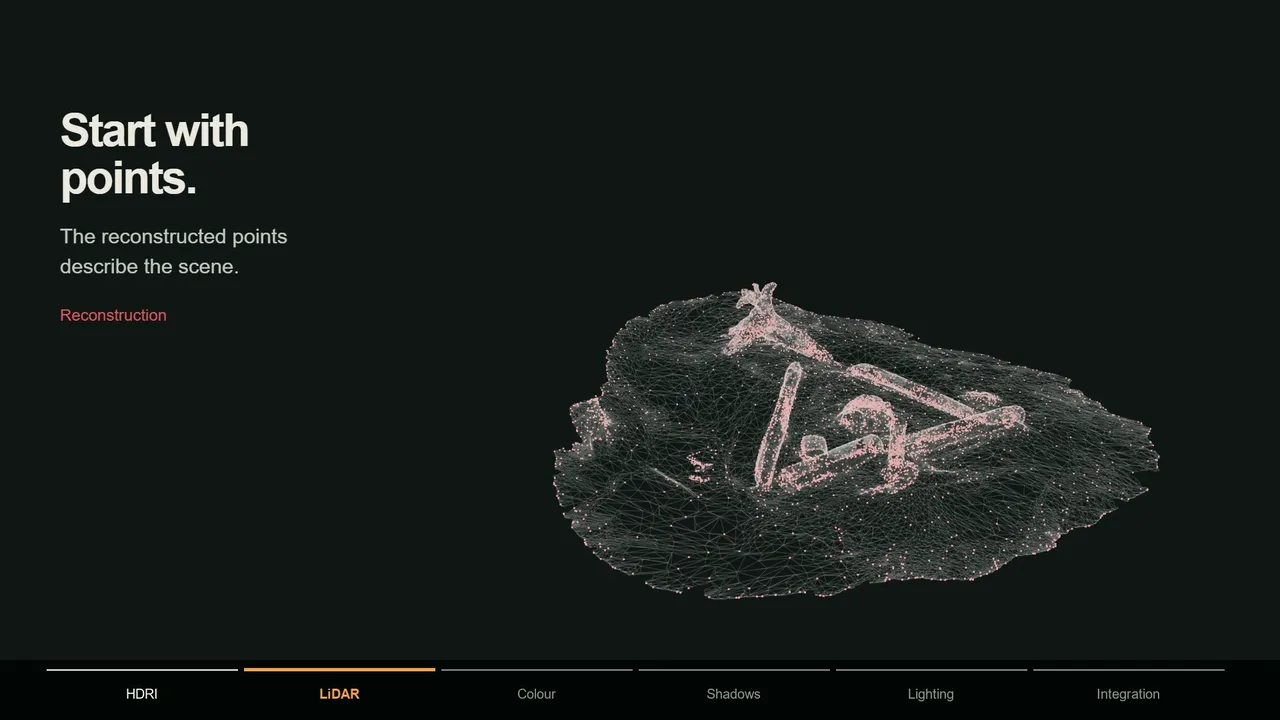
MotionMaster 3D floor alignment (Standard) snaps selected floor points to Blender's ground plane and flips inverted solves. With Max you can also build the set: dense point clouds and Mesh Generation from a Heavy Tracking result, or Point Cloud Surface for floors and walls from selected points. They come from the same solve as the camera, so they are already aligned. The trade-offs are in camera tracking vs 3D reconstruction.
How to light CG to match real footage
Lighting is where a tracked object starts to look like it belongs. The short version of the full integration guide:
- 1 Use an HDRI from the location
Load it in the World with an Environment Texture node and rotate it with a Mapping node until features in the HDRI line up with the plate.
- 2 Add a sun for the hard shadow
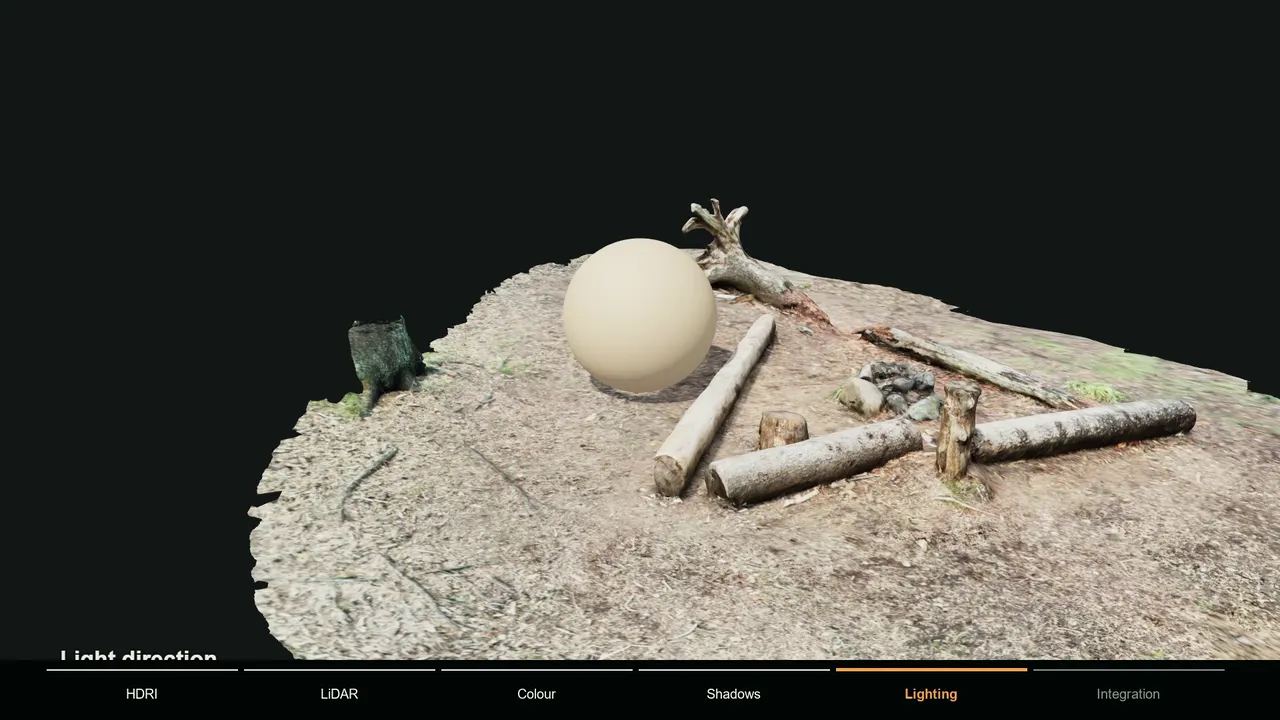
A Sun lamp gives a clean, controllable shadow. Match its rotation to the direction of real shadows in the plate and its Angle to their softness: a larger angle gives softer edges.
- 3 Test with a neutral sphere
A plain grey or white sphere shows light direction, brightness and color more honestly than your final model. Compare its shading and shadow with real objects in the shot.
- 4 Match the ground material
The geometry under the CG bounces light onto it. Give it roughly the color and roughness of the real ground, or a bounce from a default white floor lights your object from below.
In EEVEE, World Properties > Settings > Sun converts the part of the HDRI above the Threshold value into a sun light that can cast shadows, with its own Angle and Shadow settings. A Sun lamp still gives you the most direct control.
How to use shadow catchers and holdouts
Two settings in Object Properties > Visibility > Mask handle the interaction between CG and the real scene:
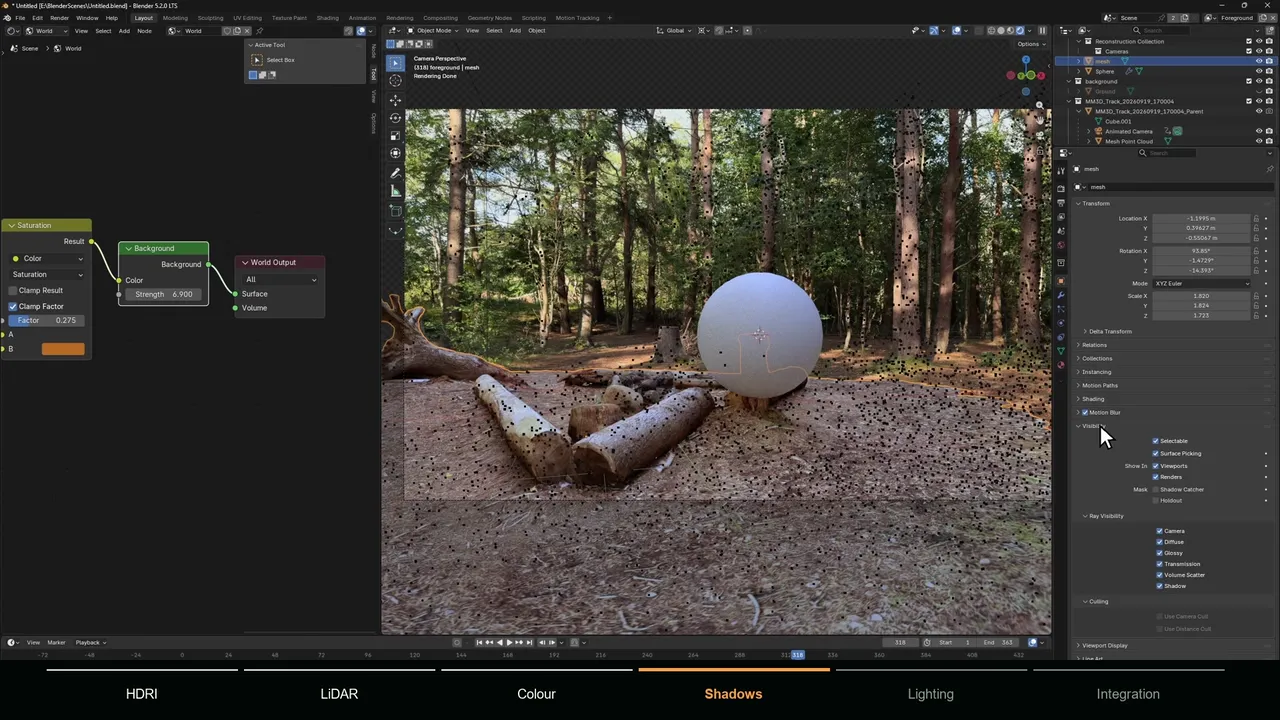
- Shadow Catcher (Cycles only) makes geometry invisible except for the shadows and light that CG adds to it. Put it on the floor proxy and your object casts a shadow onto the real ground.
- Holdout (Cycles and EEVEE) renders the object as a hole with zero alpha. Put it on proxy geometry of real things that stand in front of the CG, such as a tree trunk or a wall corner, and the plate shows through where they block it.
Holdout also works per collection and per view layer from the Outliner. In Cycles a collection can also be set to Indirect Only, so it contributes shadows and reflections without being seen itself. The full setup, the Shadow Catcher pass, the EEVEE options and the common problems are in the shadow catcher guide.
Which render passes and view layers you need
You can render everything into one image, but separate pieces are easier to fix in the composite. A typical tracked shot uses some of these:
| Pass or layer | What it gives you | Where to enable it |
|---|---|---|
| Combined with transparent film | The CG with alpha, ready to lay over the plate | Render Properties > Film > Transparent |
| Shadow Catcher (Cycles) | Shadows and light from the CG on the catcher, to multiply into the plate | View Layer Properties > Passes > Light |
| Shadow (EEVEE) | White where surfaces get direct light, black in shadow | View Layer Properties > Passes > Light |
| Vector | Motion vectors for the Vector Blur node | View Layer Properties > Passes > Data (not available while Motion Blur is on) |
| Cryptomatte | Mattes per object or material for targeted grading | View Layer Properties > Passes > Cryptomatte |
| Separate view layers | For example the CG and its shadow on separate layers | View layer selector in the top bar |
Setup Tracking Scene shows the classic split: a Foreground view layer, in which the background collection is a holdout, and a Background view layer, in which the foreground collection is Indirect Only and the ground is a shadow catcher. It is a good model for your own layout.
To keep every pass, set Output Properties > Output > Media Type to Multi-Layer EXR. In a Blender 5.2 test it stored Combined, Depth and Shadow Catcher, plus the noisy versions used for denoising, in one file per frame.
How to composite in Blender's compositor
Blender 5.0 reworked the compositor, so older tutorials show nodes that no longer exist. What you need to know in Blender 5.1 and 5.2, according to the 5.0 compositor notes and the manual:
- The compositing node tree is its own data-block. In the Compositor, click New in the header. Blender 5.2 starts you with Render Layers connected to Group Output and a Viewer.
- The Composite node was removed. The final image comes from Group Output.
- Alpha Over inputs are now called Background and Foreground.
- Color mixing uses the Mix Color node (Add > Color), with blend modes such as Multiply.
- A render only goes through the tree when Output Properties > Post Processing > Compositing is enabled.
A basic tracked-shot graph, from left to right:
- Movie Clip (Add > Input) with your footage.
- Movie Distortion (Add > Transform) set to Undistort, only if you composite on an undistorted plate.
- Scale (Add > Transform) set to Render Size, if the clip and the render resolution differ.
- Mix Color set to Multiply, with the plate in A and the Shadow Catcher pass in B, if you use that pass.
- Alpha Over: the plate into Background, the Image output of Render Layers into Foreground.
- Group Output for the final image, plus a Viewer for the backdrop.
To iterate faster, set Render Properties > Performance > Compositor > Device to GPU, and preview the comp live in the 3D Viewport: in Material Preview or Rendered shading, open the Shading popover and set Compositor to Camera. The manual notes that the viewport compositor only fills render pass outputs with EEVEE, so check a Cycles shadow catcher comp with a real render.
How to match color, grain and motion blur
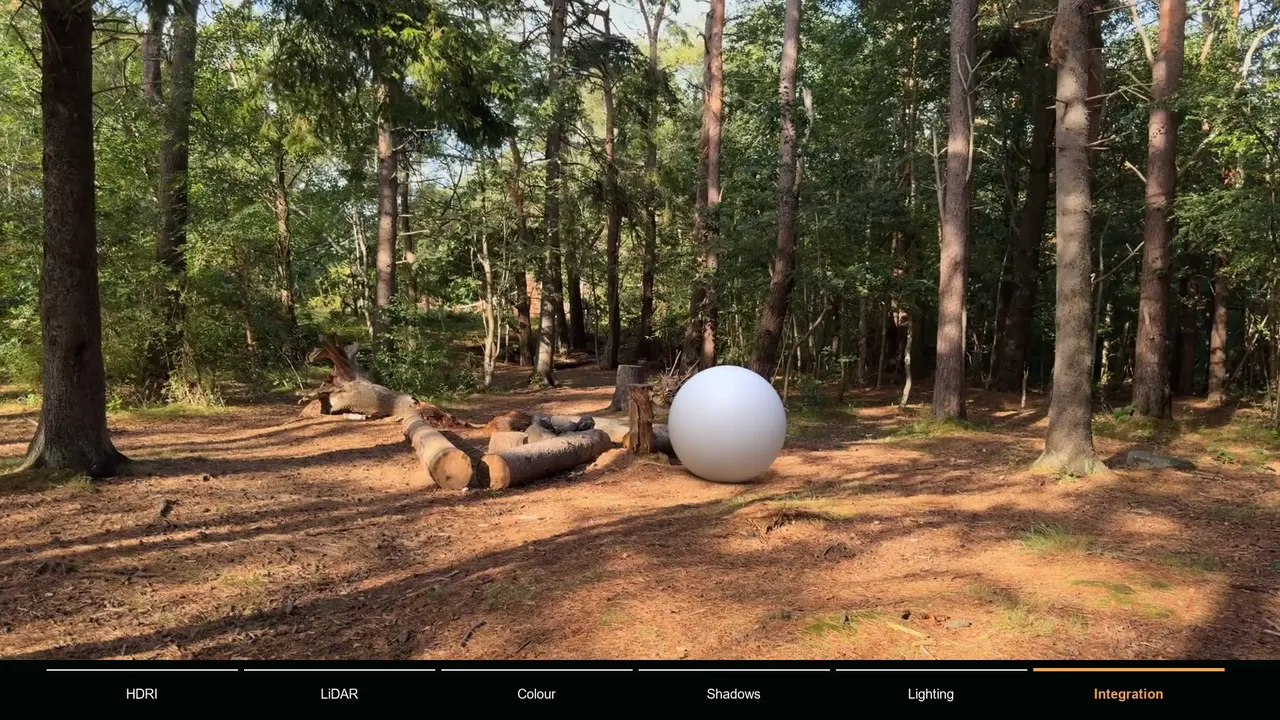
A composite falls apart when the CG is cleaner, sharper or differently colored than the plate. Work through these in order.
Color management first
Blender's default view transform is AgX, and it applies to the whole composite, footage included. In a Blender 5.2 test, an 8-bit plate value of 230 came out as 188 with AgX, 30 became 22, and a saturated red lost saturation. With Standard, the plate passed through unchanged. For ordinary sRGB or Rec.709 footage, set Render Properties > Color Management > View Transform to Standard before judging anything.
Then color
Compare blacks, midtones and highlights of the CG with similar real surfaces in the plate, using the Scopes tab (Histogram, Waveform, Vectorscope) in the Image Editor sidebar. Correct with Color Balance, RGB Curves or Hue/Saturation/Value, but fix large differences in the lighting and grade only the last few percent. Since Blender 5.0, Color Balance's Lift/Gamma/Gain mode works in linear space, so values from older tutorials look different.
Grain and softness
Rendered CG is clean; footage is not. Blender 5.1 and 5.2 ship Film Grain and Sensor Noise compositor nodes in the Camera & Lens Effects category, next to Chromatic Aberration and Vignette. Sensor Noise, with separate luminance and chroma noise, suits digital footage; Film Grain has presets from 8 mm to 70 mm film. Add grain to the CG before the Alpha Over so the plate does not get it twice, and compare at 200 percent zoom. A very small blur on the CG often helps too, since few lenses are as sharp as a render.
Motion blur
Enable Render Properties > Motion Blur and set Shutter, which Blender measures in frames, to the frame rate multiplied by the shutter time: 25 fps at 1/50 s gives 0.5, and 30 fps at 1/250 s gives 0.12. Setup Tracking Scene turns motion blur on at the default 0.5, which only fits a 180 degree shutter, and phones often pick much shorter shutters in daylight, so check the clip's metadata. Cycles also has a Rolling Shutter option in the same panel for the skew phones produce on fast moves.
How to export the finished shot
In Output Properties > Output, Media Type decides what Blender writes:
| Media Type | Use it for |
|---|---|
| Image (OpenEXR or PNG) | An image sequence of the final comp. If a long render stops, every finished frame is kept. |
| Multi-Layer EXR | All passes and view layers in one file per frame, to re-composite later in Blender or another application. |
| Video | A movie file through FFmpeg, with codecs such as H.264 and ProRes. Convenient for previews and quick deliveries. |
For long renders, write an image sequence and encode the video afterwards. If the shot continues in another compositor, render the CG with transparent film to EXR and export the camera, after baking the Camera Solver constraint with Constraint to F-Curve so the camera carries plain keyframes.
Where MotionMaster 3D saves time (Standard vs Max)
Every step above works with Blender alone. MotionMaster 3D, the addon I build, speeds up the steps that cost the most time on real footage:
| Stage | MotionMaster 3D tool | Tier |
|---|---|---|
| Camera track | Heavy Tracking: automatic COLMAP and GLOMAP solve with presets and a Zoom option; Quick Tracking for a fast preview | Standard |
| Orientation | Floor alignment from selected points, Flip for inverted solves | Standard |
| Still images | Perspective Matcher to align a camera to one frame | Standard |
| Moving objects | AI masks and polygon masks that Heavy Tracking ignores | Max |
| Lens | Camera model choice, calibration and STMap export | Max |
| Geometry for shadows | Dense point clouds, Mesh Generation, Point Cloud Surface, 3D Point Generator | Max |
| Footage on geometry | Camera Footage Projection and Multi-Frame Texture Bake, which also sets the receiver up as a Cycles shadow catcher | Max |
| Pans and screens | Tripod Tracker and Planar Tracker | Max |
| Many shots | Batch processing | Max |
Standard costs $29.99 and Max $59.99, both one-time with free 1.x updates; Standard owners can upgrade for $30. It runs on Windows with Blender 5.1 and 5.2, and an NVIDIA GPU is recommended. If your shots are clean and you like the manual loop, Blender's own tools are enough.