The rigid scene assumption
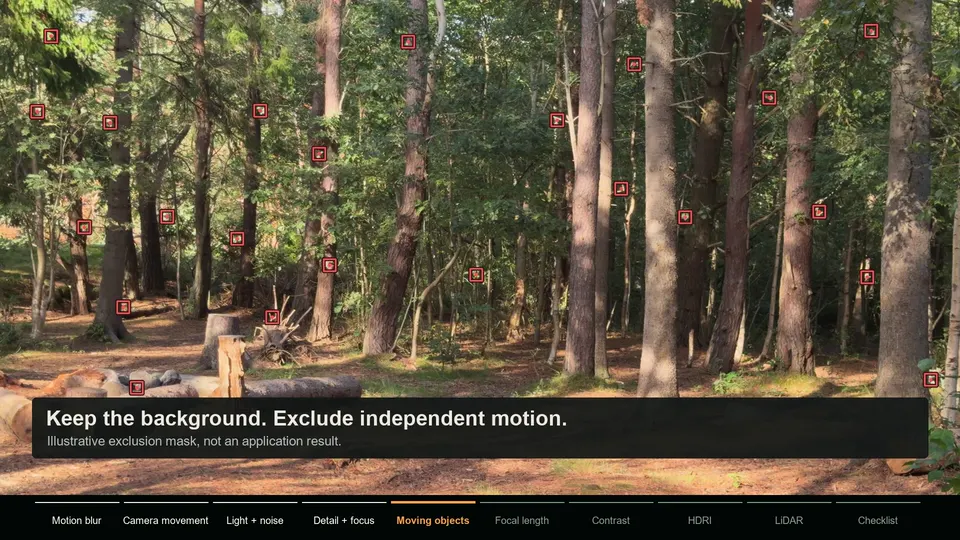
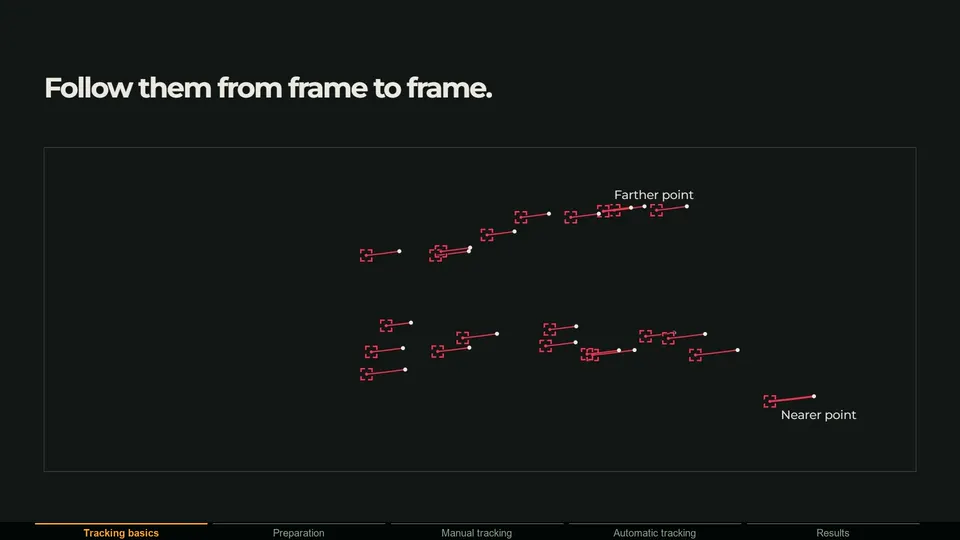
A camera solver tries to find one camera movement that explains how every tracked point moves across the image. That only works if all of those points are fixed in the world. A tree, a rock and a log do not move, so their motion in the image is caused entirely by the camera. That is what the solver is measuring.
A person walking through the frame breaks this. Tracks on the person move because the camera moves and because the person moves. The solver has no way to tell those apart. It sees a group of points that do not agree with the rest of the scene and tries to find a camera that explains both, which ends up explaining neither very well.
What counts as a moving object
People and cars are the obvious ones. These are easier to miss:
- Leaves and branches in the wind. Tree trunks are great tracking features; the canopy above them often is not.
- Water, smoke, clouds and fog. They change shape constantly.
- Reflections and screens. A reflection in a window or on a car moves with the viewer, not with the surface.
- Shadows that move, including your own shadow on the ground when you film with the sun behind you.
- Animals, flags, cloth and crowds.
- Lens flares and dust on the lens, which stay fixed in the frame while the scene moves.
How to recognize a moving-object problem
- The solve error is high, and when you sort tracks by error, a small group has errors many times larger than the rest.
- Those worst tracks all sit on the same object, or only go wrong during the frames where it passes.
- Your test object looks fine at the start of the shot and slides exactly when the person or car crosses the frame.
- The solve flips or bends in one section of the shot.
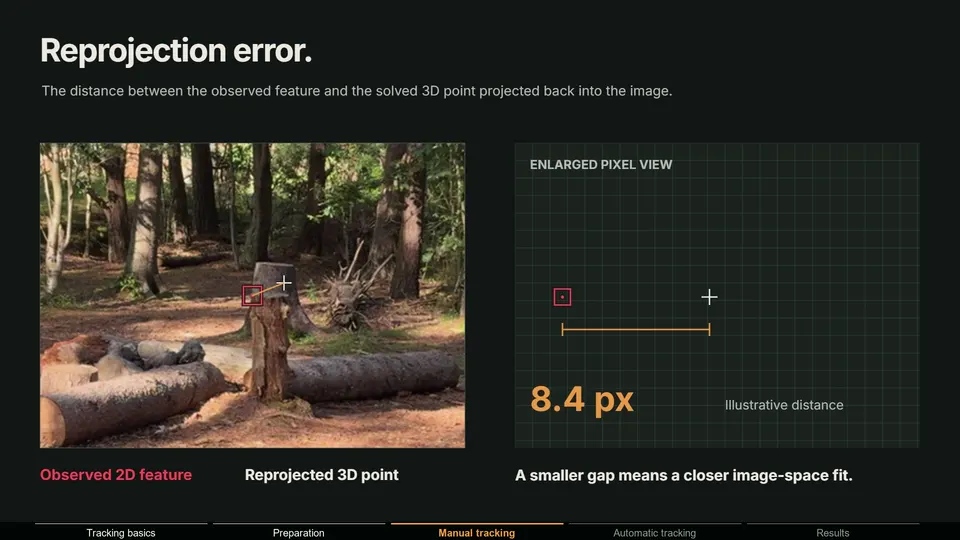
The demo below shows the effect. Adding tracks on the walking person raises the solve error, and removing them brings it back down:
Circles are the 2D features the tracker followed. Crosses are where the solved 3D points land when they are projected back through the solved camera. The distance between them is the reprojection error, drawn here 9 times larger so it is visible. The solve error Blender reports is the average over all tracks.
Fix 1: Keep the static scene dominant when you film
The easiest fix happens on set. A few moving objects over a strong static background are fine. Problems start when moving things cover most of the frame or most of the useful detail. Wait for people and cars to pass, frame so the static environment fills most of the image, and avoid having moving subjects in front of the area where your CG will sit.
Fix 2: Remove tracks on moving objects in Blender
In Blender's manual workflow you handle moving objects track by track. Detect Features does not know what moves, and the manual warns that it can place markers on moving objects, so review every detected track. Delete or disable any that land on people, cars, foliage or reflections, and do not place new ones there. After solving, sort tracks by average error to find any you missed, remove them and solve again.
This works, but it is slow when the object is large or crosses the whole frame, because you have to catch every track it touches on every frame.
Fix 3: Mask moving objects with AI
A mask tells the tracker which parts of the image to ignore, for the whole shot at once. In MotionMaster 3D you click the moving object, confirm the selection, and a SAM 2 based AI mask follows it through every frame. Heavy Tracking then solves only from the unmasked background.
- 1 Add an AI mask layer
Select the footage and add a SAM2 layer for the object. Add one layer per moving object if there are several.
- 2 Click and confirm
Click the object in the viewer and confirm the selection. The mask is generated across the sequence.
- 3 Fix with polygons if needed
Add an animatable polygon layer for anything the AI misses, or for simple shapes like a car window.
- 4 Track the background
Enable Use Mask in Heavy Tracking and choose to track the background region, so masked objects are ignored.
The full mask workflow, with tips on how big a mask should be, is in how masks improve camera tracking, and the feature reference is in the masks documentation. There is also an overview on the camera tracking with moving objects page.
When the moving object is what you want to track
Sometimes the moving thing is the target: you want to attach CG to a moving box, a car door or a prop. Then the logic flips. Instead of ignoring the object, you track only the object, which is object tracking.
In Blender, create a tracking object in the Objects panel, track markers only on the object and use Solve Object Motion. In MotionMaster 3D, mask the object, run Heavy Tracking on the masked object region instead of the background, and use Camera Inversion to turn the solved camera motion into object motion. The differences between these methods are explained in camera vs planar vs tripod vs object tracking.
Tricky cases
| Situation | What to do |
|---|---|
| Trees moving in the wind | Mask the canopy and keep tracks on trunks, rocks and ground |
| Water or a fountain in frame | Mask it completely; it never holds a stable feature |
| A crowd covering most of the frame | Reshoot if possible. With too little static detail, no mask can save the solve |
| Reflections on glass or cars | Mask the reflective surface, or track the static frame around it |
| Your own shadow on the ground | Mask it, or film so the sun is not directly behind you |
| A car passing close to the lens | Mask it, and trim the frames where it fills the whole image |