The quick answer
| Method | Question it answers | Use it for | In Blender | In MotionMaster 3D |
|---|---|---|---|---|
| Camera tracking | How did the camera move through the scene? | Walking, dolly, crane and drone shots where CG sits in the world | Solve Camera Motion | Quick and Heavy Tracking |
| Planar tracking | How did a flat surface move? | Screen replacements, signs, posters, walls | Plane Track built from point tracks | Planar Tracker (Max) |
| Tripod tracking | How did a fixed camera rotate? | Pans, tilts and nodal moves from one position | Solve with the Tripod option | Tripod Tracker (Max) |
| Object tracking | How did one rigid object move? | A moving box, vehicle or prop with a static camera | Object tracking in the Objects panel | Masks plus Camera Inversion |
Camera tracking
Camera tracking, also called matchmoving, reconstructs how the real camera moved through the scene. The tracker follows many points through the footage, and the solver finds the one camera path and the 3D point positions that explain how all of those points moved. The result is an animated Blender camera plus a cloud of reconstructed points.
It is the right choice whenever CG has to live inside the environment: a creature walking on the ground, a building added to a skyline, a spaceship flying past trees. It has one hard requirement: the camera must change position, because depth is measured from parallax. Without it, use one of the other methods.
In Blender you place and clean tracks yourself, then click Solve Camera Motion. MotionMaster 3D offers Quick Tracking for a real-time preview and Heavy Tracking for a fully automatic, high-quality solve. More on that on the Blender camera tracking addon page.
Planar tracking
A planar tracker does not reconstruct the whole scene. It follows one mostly flat surface and measures how it changes over time: position, rotation, scale and perspective distortion. Imagine a shot of someone holding a tablet. To replace what is on the screen, you do not need the camera path or the depth of the room. You only need the four corners of the screen in every frame.
Use it for phones, tablets, monitors, signs, posters, walls and floors where you want to attach an image, a video or a flat CG element. Because it only needs the surface, it works whether the camera moved, rotated or stayed still. It does not work on surfaces that bend, fold or deform.
Blender can build a Plane Track from point tracks that lie on the surface, but it depends on those points staying locked and it has no way to correct a slipping corner. MotionMaster 3D adds a Mocha-style planar tracker inside Blender: you draw a four-corner shape in the Track Workspace, track it with a GPU, CPU or hybrid engine, fix drift with AdjustTrack without overwriting the solve, and publish a native Plane Track, a compositor Corner Pin and a 3D plane, or an animated camera.
Tripod tracking
Tripod tracking handles shots where the camera stays in one place and only rotates, like a camera on a tripod panning left to right. Because the position never changes, there is no parallax and no depth to reconstruct. A tripod solve skips position entirely and solves only the rotation.
Try it yourself: switch between walking sideways and panning on a tripod, and watch the depth signal disappear.
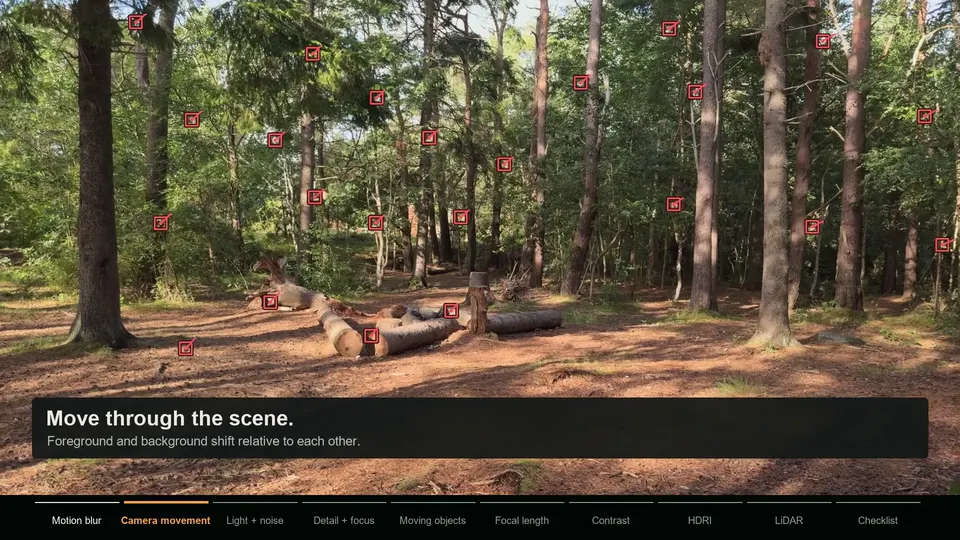 Camera view, tracked features
The camera only rotates. Near and far points slide across the frame together, so one flat image transform explains every track. A normal solve fails here; use a tripod (rotation-only) solver instead.
near features far features. The meter measures how much of the track motion one flat image transform cannot explain, which is the part that carries depth.
In Blender, enable Tripod in the Solve panel; the manual recommends around 5 to 10 well spread tracks. The MotionMaster 3D Tripod Tracker solves pan, tilt and roll automatically, estimates the focal length from the footage (Auto Lens), handles zoom, and parents the camera to an adjustment Empty so you can reposition the whole solve without touching its keyframes.
Object tracking
Object tracking flips the question around. Instead of asking how the camera moved, it asks how a specific object moved. You track several points on one rigid object, such as a box, a car or a prop, and solve its position and rotation in 3D. Then you can attach CG to it: a screen on a moving device, a part bolted onto a car, an effect that follows a thrown box.
In Blender, add a tracking object in the Objects panel, track markers on the object only, and use Solve Object Motion. In MotionMaster 3D the usual route is to mask the object with an AI or polygon mask, run Heavy Tracking on the masked object region, and use Camera Inversion to turn the solved camera motion into object motion with a fixed camera. This works for rigid objects; faces and bodies that deform need dedicated tools.
How to choose the right method
- Do you only need to attach something to one flat surface? Use planar tracking, whatever the camera did.
- Did the camera physically move through the scene? Use camera tracking.
- Did the camera only pan, tilt or roll from one spot? Use tripod tracking.
- Is the thing you need to follow moving on its own while the camera is still? Use object tracking.
- Does the focal length change during the shot? Tell the solver: enable variable focal length in Heavy Tracking, or use the Tripod Tracker, which can solve zoom.
Many shots need two methods. A walking shot past a TV needs a camera track for the room and a planar track for the screen. MotionMaster 3D's Add To Existing Camera option publishes planar surfaces into a camera that was already solved, so everything ends up in one consistent Blender camera.
What happens when you pick the wrong one
| Shot | Wrong choice | What you see | Right choice |
|---|---|---|---|
| Pan from a tripod | Camera tracking | Solve fails, flips or invents a strange camera path | Tripod tracking |
| Phone screen in a handheld shot | Camera tracking only | Screen corners slide because the solve is weakest on that small area | Planar tracking on the screen |
| Car driving past a static camera | Camera tracking | Tracks on the car fight tracks on the road | Mask the car, or object track it |
| Zoom shot | Fixed focal length solve | High solve error, CG grows or shrinks wrongly | Variable focal length or a tripod zoom solve |
| Wall with a bend in it | Planar tracking | Corners drift where the surface is not flat | Camera tracking, or a planar track per flat section |