What is camera tracking, and when do you need it?
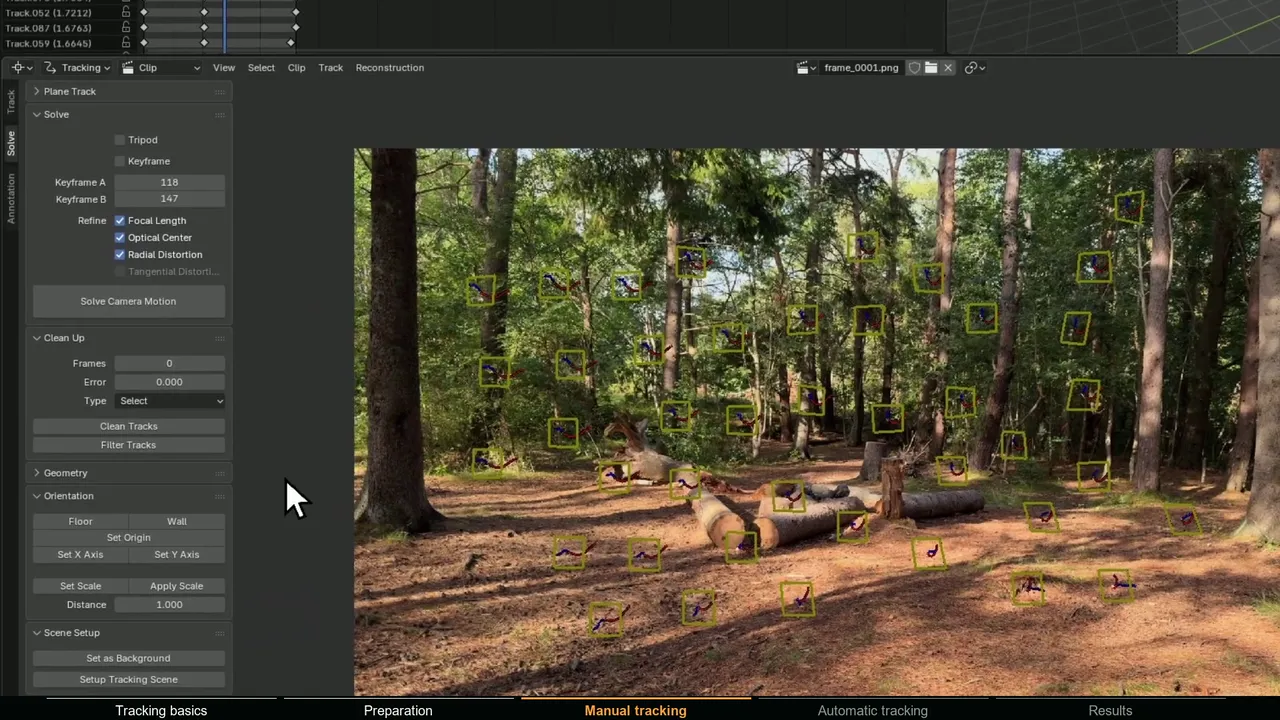
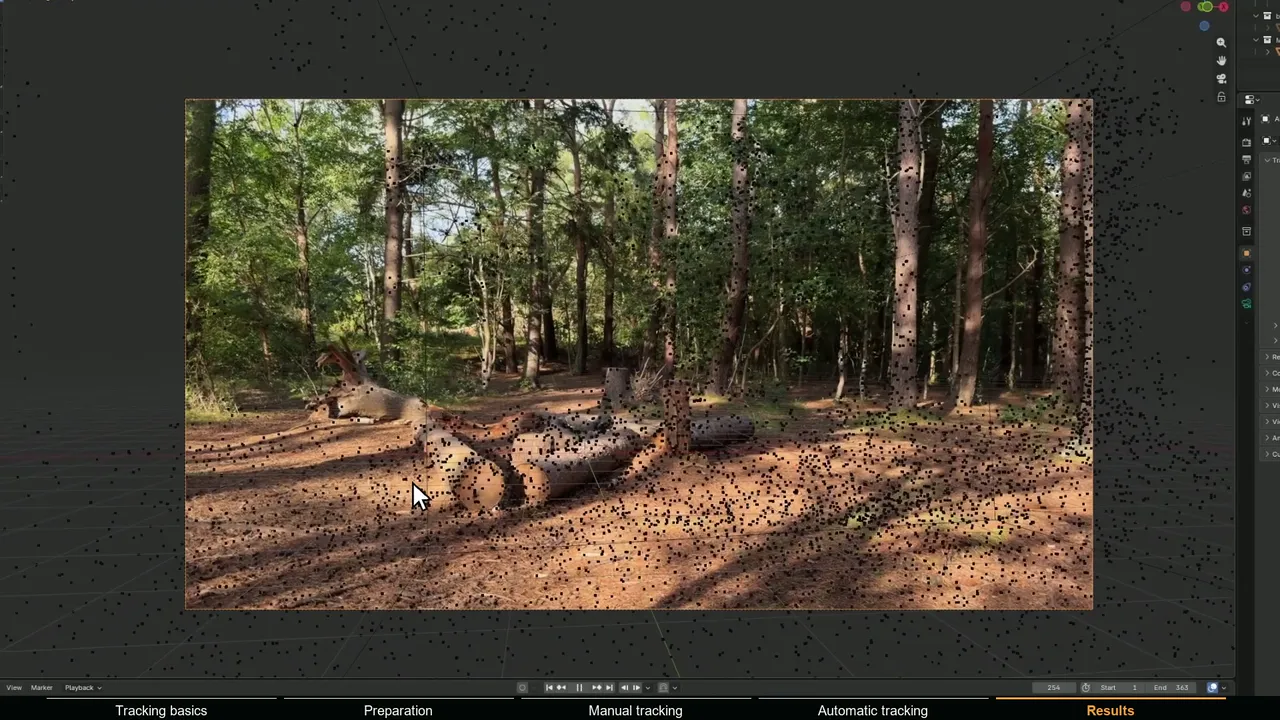
Camera tracking, also called matchmoving, recovers how a real camera moved while it filmed a shot. Blender's tracker follows small image features from frame to frame, then solves for the one camera path and set of 3D points that explain all of those 2D tracks at once. You get a Blender camera that moves like the real one, plus sparse 3D points (Blender calls them bundles) where the tracked features sit in space.
You need it whenever CG has to stay locked to a shot where the camera moves. Blender calls the whole toolset motion tracking, and it covers more than the camera, so pick the method that matches the shot:
| Shot | What to use in Blender |
|---|---|
| Camera moves through the scene (walking, drone, dolly) | Camera solve, the subject of this guide |
| Camera pans or tilts from one spot | Camera solve with Tripod enabled, see tracking pan and tilt shots |
| Only a flat surface matters (screen, sign, wall) | A plane track with Create Plane Track |
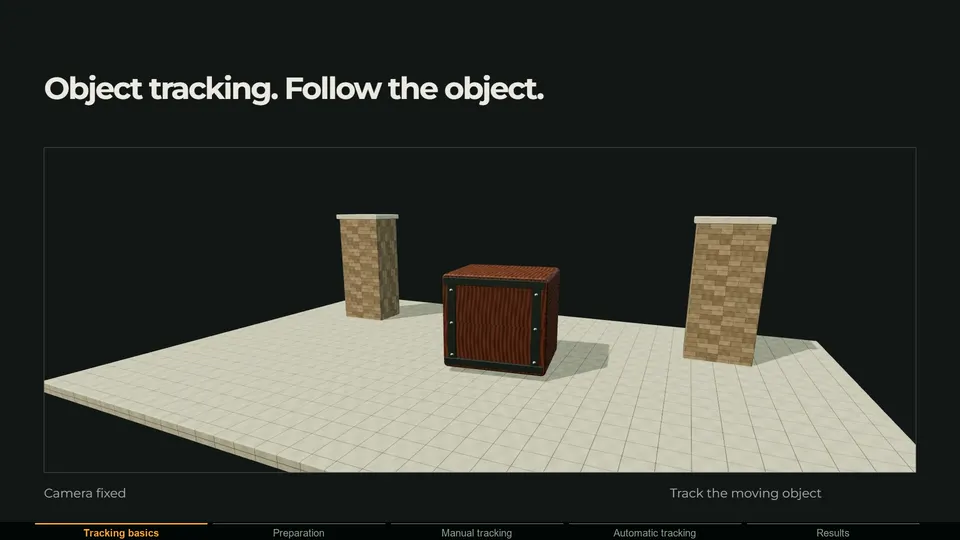
| An object moves on its own | An object solve, see object tracking in Blender |
| Locked-off camera, nothing to attach to | No tracking needed |
What footage tracks well?
Most failed tracks are decided on set, not in Blender. Before you spend an evening tracking, check the clip against this list:
- Sharp frames. A fast shutter keeps edges crisp. Motion blur smears the corners that trackers lock onto.
- Real camera movement. Walking, dollying or orbiting creates parallax. Rotation alone does not.
- Locked exposure and focus, so features look the same from frame to frame.
- Detail to track spread over the frame and at different depths. White walls, sky, water and green screens give the tracker nothing.
- Few moving things. People, cars, leaves and reflections move on their own and confuse the solve.
- A fixed focal length. Blender solves one focal length per clip, so avoid zooming.
The details, with test clips of each problem, are in what makes footage good for camera tracking and how to shoot footage for camera tracking. Phone users should also read from iPhone footage to a Blender camera solve.
How to set up a clip in the Movie Clip Editor
The names below are from Blender 5.2; recent 4.x versions look almost the same.
- 1 Open the Motion Tracking workspace
Click the + next to the workspace tabs and choose VFX > Motion Tracking.
- 2 Load the footage
Click Open in the Clip menu (Alt+O). An image sequence (PNG, JPG or EXR) is more reliable than a compressed video, because every frame is its own file. Making a tracking copy explains how, including downscaling 4K for speed.
- 3 Match the scene to the clip
Click Set Scene Frames in the Clip panel of the Track tab to set the scene's frame range to the clip. Set the scene frame rate in Output Properties > Format to the footage frame rate as well.
- 4 Prefetch the frames
Press P (Prefetch) to load as many frames into memory as the cache allows, which makes tracking much faster. For long clips, raise Memory Cache Limit in Preferences > System.
- 5 Enter the camera data
In the sidebar (N) Track tab, set Sensor Width in the Camera panel and Focal Length, Optical Center and the Lens Distortion model in its Lens subpanel. In Blender 5.2 a new clip starts at a 24 mm lens on a 35 mm sensor, so replace those with your camera's values. For a phone, a 36 mm sensor width with the 35 mm equivalent focal length is a usable start.
How to place and track markers
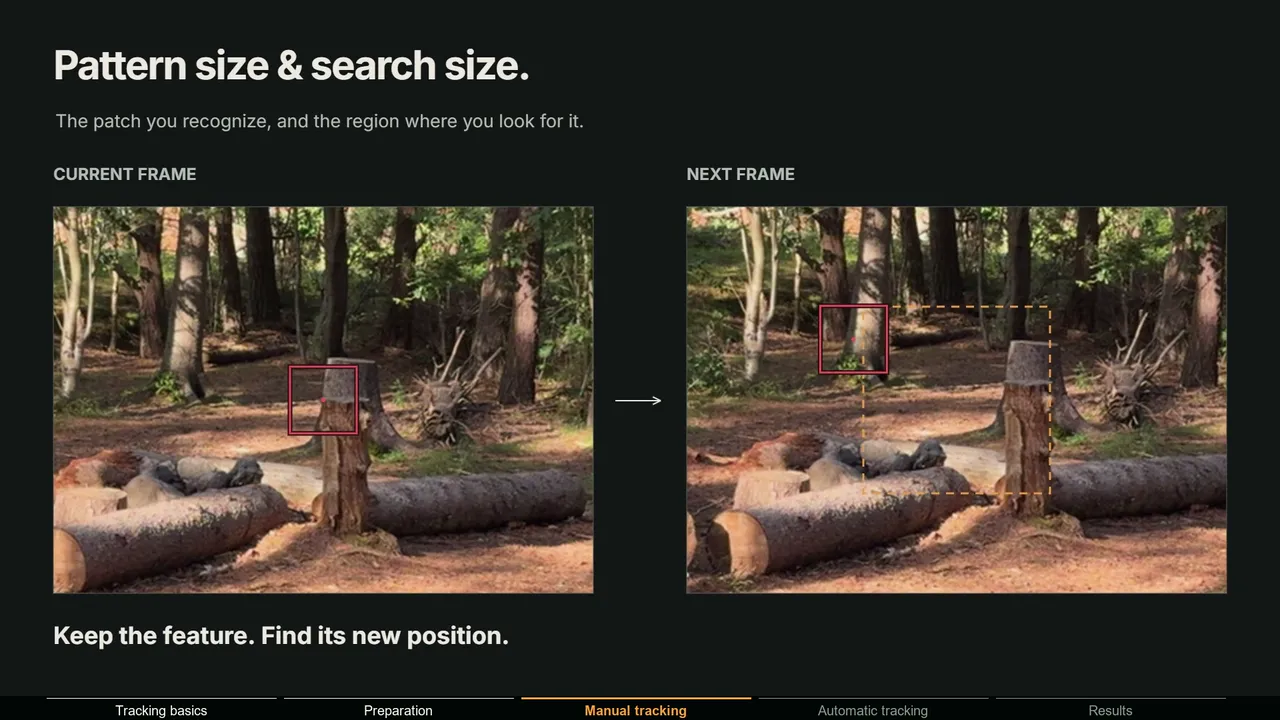
A marker has two boxes: the pattern, the patch of image the tracker remembers, and the search area, the region it scans in the next frame to find that patch again. The Marker panel of the Track tab gives you two ways to add markers:
- Ctrl+click on the footage places a marker exactly where you click, on a feature you chose.
- Detect Features places markers on corners in the current frame. Its options (in the Adjust Last Operation panel) are Placement (Whole Frame, Inside Annotated Area or Outside Annotated Area), Margin (16 px by default), Threshold (0.5; lower it for more markers) and Distance (at least 120 px between markers).
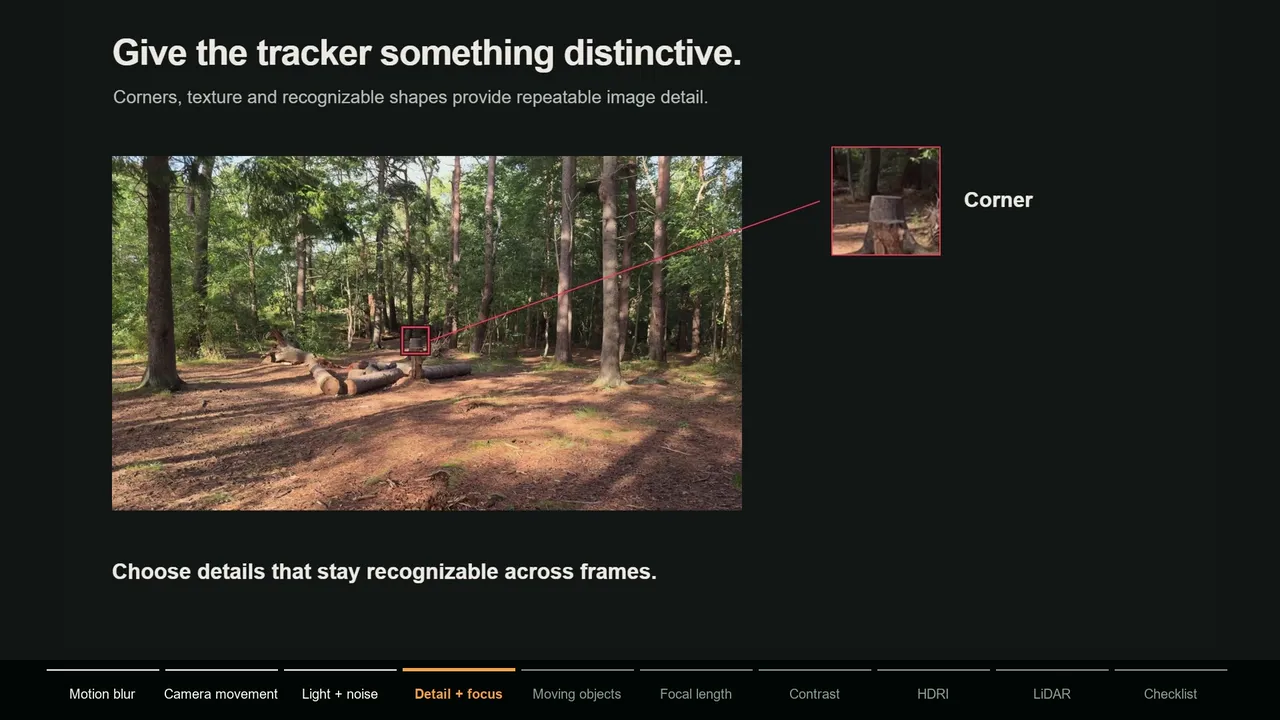
Good features are high-contrast corners and textures that stay recognizable for many frames: bark, stones, bolts, window corners. Spread them over the frame and over near and far depths. Avoid reflections, highlights and spots where a foreground edge crosses a background edge, because those false corners slide as the camera moves.
Pattern size, search size and the other tracking settings
The Tracking Settings panel in the Track tab sets how new markers track. The presets in its header are a good start for difficult clips:
| Preset | Pattern | Search | Motion model | Match | Correlation |
|---|---|---|---|---|---|
| Default | 21 | 71 | Location | Keyframe | 0.75 |
| Blurry Footage | 31 | 91 | Location | Previous frame | 0.6 |
| Fast Motion | 31 | 151 | Location & Rotation | Previous frame | 0.6 |
| Planar | 41 | 91 | Perspective | Keyframe | 0.75 |
- Pattern Size and Search Size: a bigger search area for features that move far between frames, a bigger pattern for blurry or noisy footage.
- Motion Model: Location suits most features; Affine or Perspective helps on surfaces that turn or scale strongly.
- Match: Keyframe compares against the keyed frame and prevents slow sliding; Previous frame follows gradual changes but can drift.
- Normalize helps when light changes over a feature. Correlation (in Tracking Settings Extra) is the minimum match quality: lower it if tracks stop too early, raise it if they slide.
Tracking forward and backward
Select markers and press Ctrl+T to track forward, Shift+Ctrl+T to track backward, or Alt+Right Arrow and Alt+Left Arrow for one frame at a time. A marker that fails during sequence tracking is disabled while the rest carry on. The manual's advice is a good habit: start markers in the middle of the shot and track both ways. If a marker slides, move it back and use Track > Refine; if a feature leaves and returns, track it again and merge the two with Join Tracks (Ctrl+J).
How to clean up tracks before you solve
A few bad tracks drag down every good one. The tools are in the Clean Up panel of the Solve tab:
- The Graph view of the clip editor shows track motion curves; a spike in a smooth curve is a jump.
- Filter Tracks deletes obviously bad tracks, such as very short ones, and selects tracks with suspicious spikes.
- Clean Tracks selects or deletes tracks shorter than Frames or with a reprojection error above Error (meaningful after a solve), or deletes only their bad segments, depending on Type.
- After a solve, the Dope Sheet view sorted by Average Error puts the worst tracks at the top.
Blender refuses to solve with fewer than 8 tracks visible on both keyframes, so replace bad tracks with new ones in good areas instead of only deleting.
How to solve the camera in Blender
Open the Solve tab in the clip editor's toolbar:
- 1 Choose the keyframes
Keyframe A and Keyframe B (1 and 30 on a new clip) are the frames the reconstruction starts from. They need at least 8 common tracks and clear parallax between them. Tick Keyframe to let Blender pick the pair.
- 2 Solve without refinement first
Leave Refine off and click Solve Camera Motion. The result appears in the header, for example
Solve error: 0.42 px. - 3 Clean and solve again
Fix or delete the tracks with the highest error, add tracks where coverage is thin, and solve again until the error stops improving.
- 4 Refine the lens
Tick Focal Length under Refine and solve again, then add Radial Distortion for wide lenses, phones and action cameras. Tangential Distortion only applies to the Brown and Nuke distortion models. Refinement only works when the starting values are roughly right.
When a solve succeeds, Blender makes the clip the scene's active clip and copies the solved focal length to the scene camera.
How to read the solve error
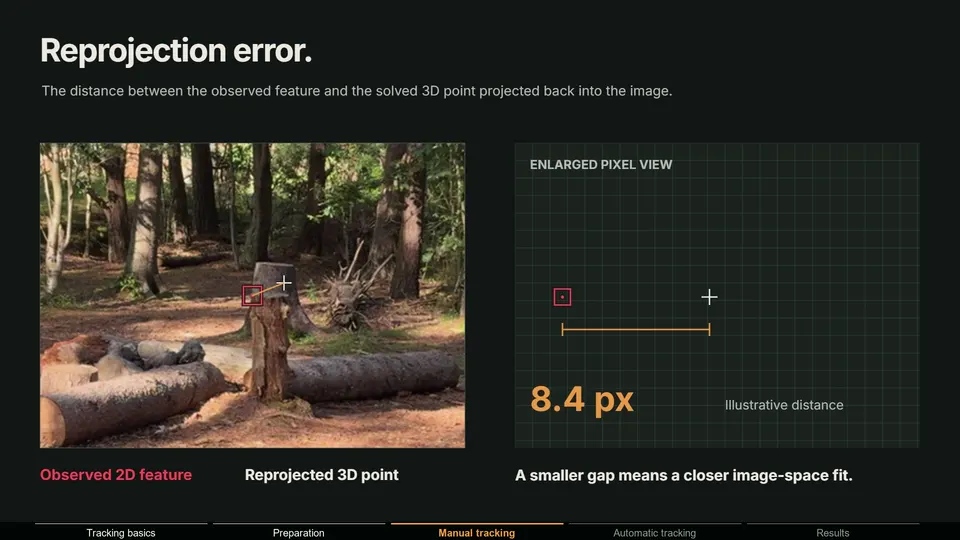
The solve error is the average reprojection error in pixels: the distance between where each feature was tracked and where its solved 3D point lands when projected back through the solved camera. Blender's manual gives these ranges:
| Solve error | What the manual says | What to do |
|---|---|---|
| Below 0.3 px | Accurate reprojection | Check it visually, then move on |
| 0.3 to 3 px | A usable solve | Check where CG touches the ground |
| Above 3 px | Inaccurate tracks, or a wrong focal length or distortion | Clean tracks, fix the camera data, refine the lens |
A low number is not proof: a few tracks bunched in one area can report a tiny error and still be wrong. Put a test object on the ground and scrub through the camera; it must stay glued to its spot, near and far. If the error is low but the object slides, read why an object slides with a low solve error. If the error is high, work through how to fix a high solve error.
How to set the floor, origin and scale
A solve comes out at an arbitrary position, rotation and scale. The Orientation panel in the Solve tab fixes that by moving the scene camera (or its parent), so the scene needs a camera that uses the clip: run Setup Tracking Scene first (next section) or add a Camera Solver constraint yourself.
- 1 Set the floor
Select exactly three solved tracks on the real ground and click Floor. Blender rotates the camera so those points lie flat at Z = 0, with the origin at the active track. Wall does the same for a vertical surface.
- 2 Set the origin
Select a track where the world origin should be, such as where your CG will stand, and click Set Origin.
- 3 Set an axis
Select one track along the direction you want, like the edge of a road, and click Set X Axis or Set Y Axis. The origin stays put.
- 4 Set the scale
Select two tracks with a known real distance, enter it in Distance (1.0 by default) and click Set Scale. Apply Scale rescales the tracking data itself instead.
If Blender reports "Three tracks with bundles are needed to orient the floor", you selected more or fewer than three tracks, or one has no solved 3D position. The fix for that error walks through it.
How to render the footage behind your 3D objects
The footage behind the camera in the viewport is a camera background image, a display aid that does not appear in the render. To combine footage and CG, you composite them. Setup Tracking Scene (Solve tab > Scene Setup, or the Clip menu) builds the common setup. In Blender 5.2 it:
- adds a Camera Solver constraint to the scene camera and copies the clip's sensor width, focal length and optical center to it,
- sets the clip as the camera background, undistorted when the clip has distortion values,
- creates Foreground and Background view layers and matching foreground and background collections,
- adds a ground plane to the background collection and marks it as a shadow catcher (a Cycles feature), plus a test cube and a light if the scene has none,
- builds a compositor node group that undistorts the clip with a Movie Distortion node and layers the render over it with Alpha Over.
Then check two settings yourself: turn on Transparent in Render Properties > Film so the world background does not cover the footage, and keep Compositing enabled in Output Properties > Post Processing. Shadow catching is a Cycles feature; geometry that should receive shadows goes in the background collection, your CG in the foreground collection.
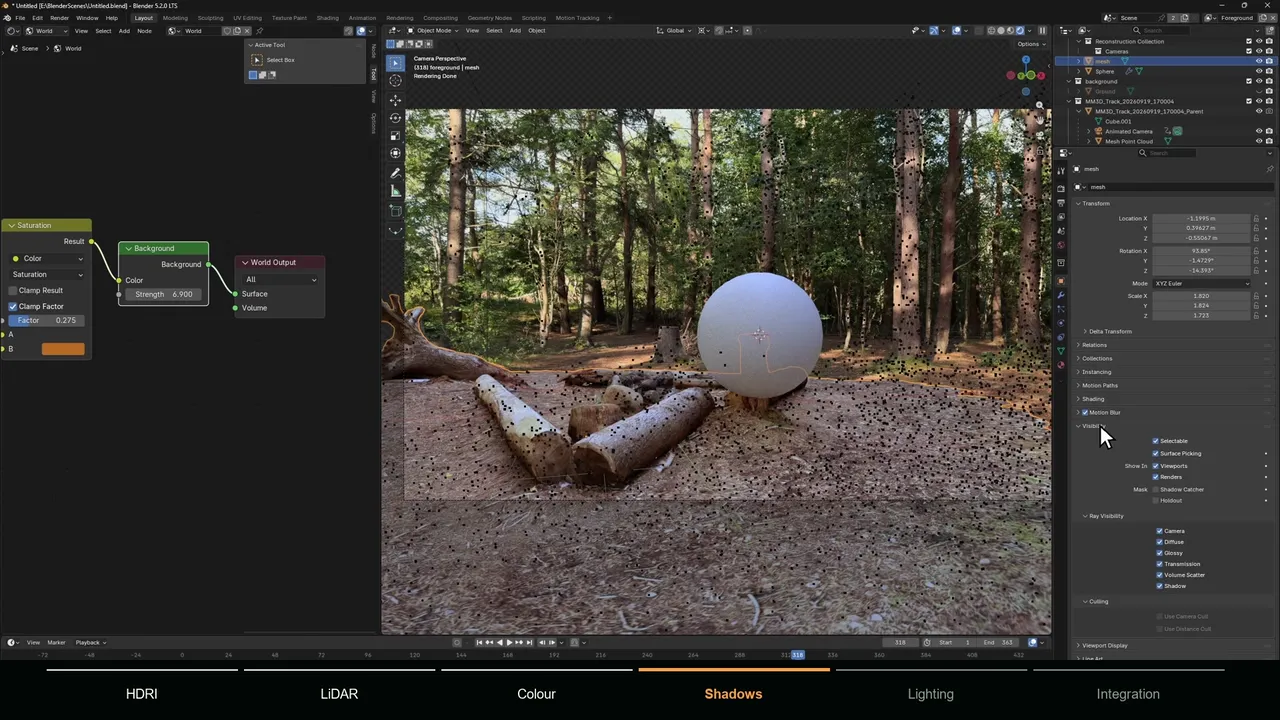
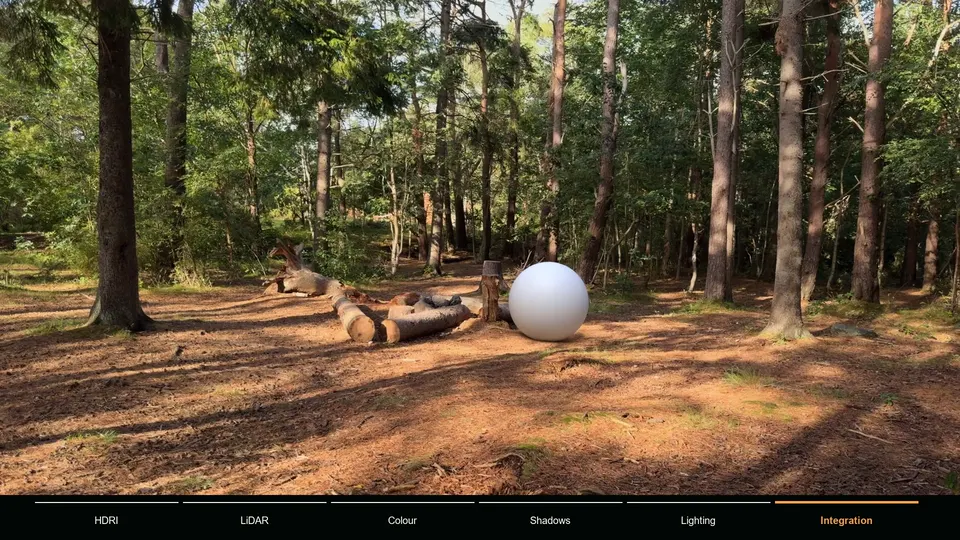
Lighting and grounding the object are covered in adding 3D objects to tracked footage and using a shadow catcher with tracked footage.
Common Blender camera tracking problems and fixes
| Problem | Likely cause | Fix |
|---|---|---|
| "At least 8 common tracks on both keyframes are needed for reconstruction" | Fewer than 8 tracks visible on both keyframes | Track longer, move the keyframes, or tick Keyframe. Full fix |
| "Some data failed to reconstruct (see console for details)" | A track got no 3D position, or a frame got no camera | Window > Toggle System Console shows which. Full fix |
| "Three tracks with bundles are needed to orient the floor" | Not exactly three solved tracks selected | Select three solved ground tracks. Full fix |
| Trackers stop after a few frames | Motion blur, fast motion, a small search area | A bigger search size, the Blurry Footage or Fast Motion preset, a lower Correlation |
| Solve error above 3 px | Sliding tracks, moving objects, wrong focal length, distortion | Fix a high solve error |
| Low error, but the CG slides | Few tracks near the object, a wrong but consistent focal length | Low solve error but the object slides |
| Absurd solved focal length | Too little parallax, or a pan solved as a normal shot | Enter the real focal length without refining it, or use Tripod |
| A zoom shot will not solve | Blender solves one focal length per clip | Solve the part without zoom, or use a solver with variable focal length |
| People or cars ruin the solve | Tracks on objects that move on their own | Delete those tracks. Why moving objects break camera tracks |
| Footage in the viewport but not in the render | The camera background is viewport only | Setup Tracking Scene plus Film > Transparent |
| CG drifts near the frame edges | Unsolved lens distortion | Refine Radial Distortion. Lens distortion in Blender |
The automatic route: MotionMaster 3D
Everything above is manual. It works and teaches you how solving works, but on a long or difficult shot the track, clean and solve loop can take hours. MotionMaster 3D is the Blender addon I build to automate that loop, so weigh this section accordingly.
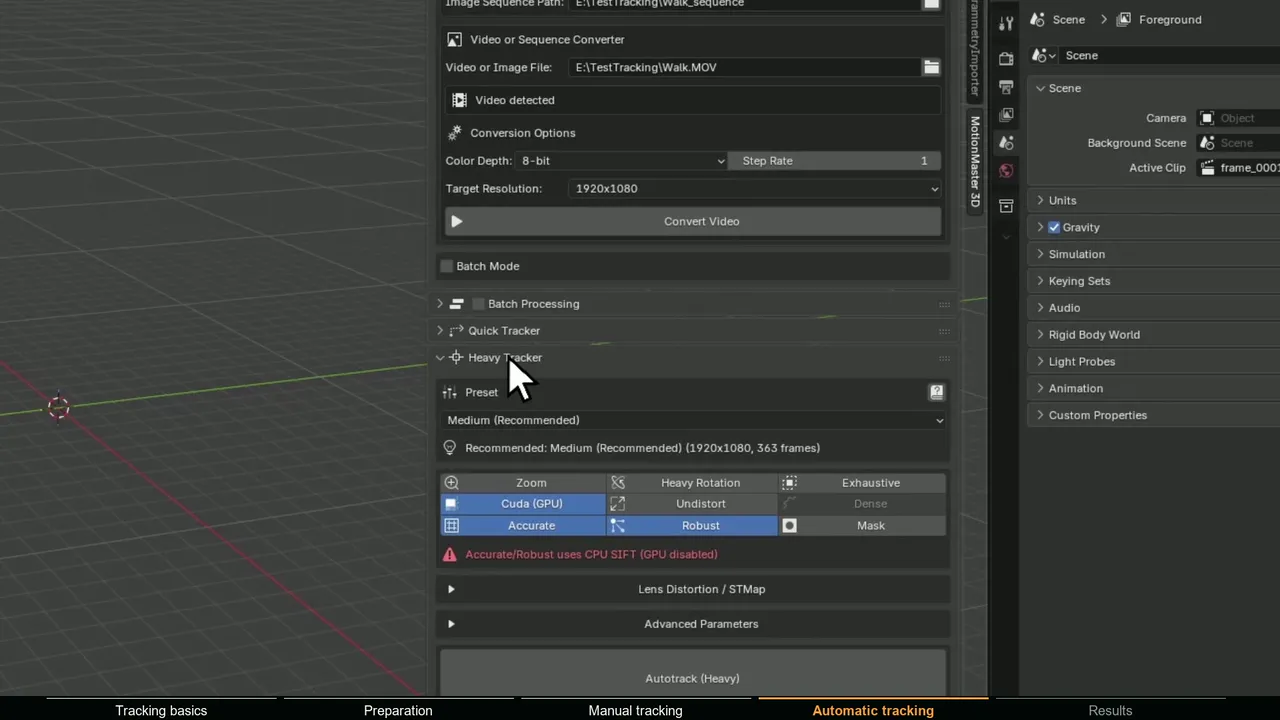
Heavy Tracking extracts and matches features across the whole sequence with a COLMAP and GLOMAP based pipeline, verifies every match geometrically so outliers drop out on their own, and solves the camera and lens together. You pick a preset from Super Fast to Extra High (Medium is the recommended default), enable Zoom if the focal length changes, and click Autotrack (Heavy). Afterwards the panel shows registered frames, mean reprojection error, a stutter score and the point count, so you can judge the solve before importing it with Import Results and aligning the floor with the Aligner. Quick Tracking is a faster SLAM-based mode with a live preview; it is still marked Alpha and needs correct camera data, so Heavy is the better default.
| Feature | Standard | Max |
|---|---|---|
| One-time price | $29.99 | $59.99 |
| Quick and Heavy Tracking | Yes | Yes |
| Floor alignment and Perspective Matcher | Yes | Yes |
| AI masks (SAM 2) and polygon masks for moving objects | No | Yes |
| Tripod Tracker and Planar Tracker | No | Yes |
| Lens calibration and STMap export | No | Yes |
| Dense point clouds, meshes, point cloud cleanup, batch processing | No | Yes |
It needs Windows and Blender 5.1 or 5.2; an NVIDIA GPU with CUDA is recommended, and the CPU works, just slower. A side-by-side with Blender's tracker is on MotionMaster 3D vs Blender's camera tracker.
When is the free Blender tracker enough?
Often. Blender's tracker is a complete matchmoving tool. Stick with it when the shot is clean (sharp, good parallax, plenty of texture, nothing large moving through it), when the clip is short enough that placing markers by hand is not a chore, when you want to learn how tracking works, or when you work on macOS or Linux, where MotionMaster 3D does not run.
An automatic solver earns its price on long, blurry shots full of people and cars, when you track many shots, or when you need the lens, a dense point cloud or masks in the same job. To compare tools, see the best camera tracking addons for Blender and the best camera tracking software.