What is object tracking in Blender?
Camera tracking asks how the camera moved through a static scene. Object tracking asks how one rigid object moved: a box being carried, a car, a prop in an actor's hand. Blender's tracker handles both in the Movie Clip Editor, and the manual describes object solving as solving the object's motion in relation to the camera.
Every clip has one tracking object for the camera, and you can add more for moving objects. Each is solved on its own: the camera solve drives a Blender camera through the Camera Solver constraint, an object solve drives a Blender object through the Object Solver constraint. Unsure which method a shot needs? See camera vs planar vs tripod tracking.
What does a shot need for object tracking to work?
The object solver has the same needs as the camera solver, and they are harder to meet on a single object than on a whole scene:
- A rigid object. Every tracked point has to keep its distance to the others. Faces, hands, bodies and cloth deform.
- At least 8 good features on the object, visible on both solve keyframes, ideally spread over several faces.
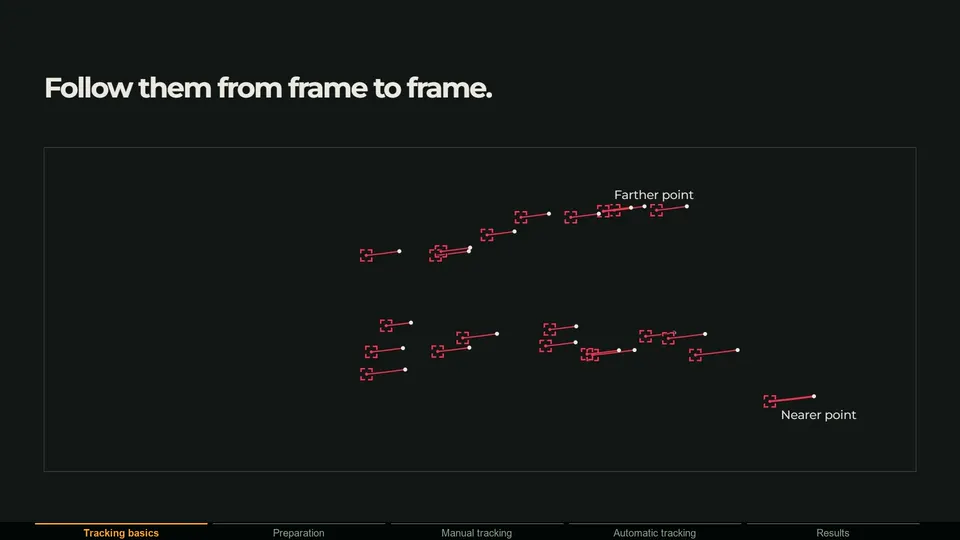
- Change of angle. The object has to rotate or move in depth so its near and far features shift against each other. An object sliding past without turning gives the solver little to work with.
- Enough size in frame. A small object has few pixels and few features.
- Correct camera data. All tracking objects share the clip's camera settings, and Blender only refines them during a camera solve. Enter the real focal length, or solve the camera first.
How to track an object in Blender, step by step
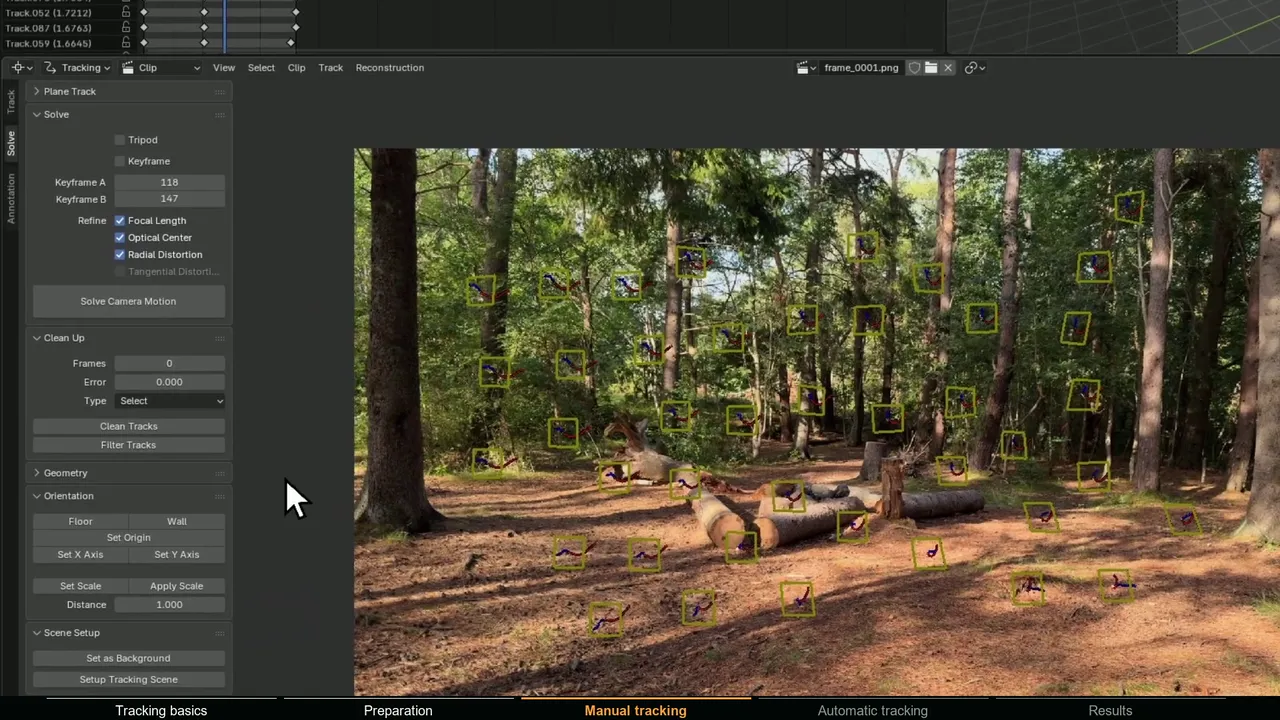
Set up the clip as for a camera track: open it, click Set Scene Frames, prefetch with P and enter the camera data. The complete camera tracking guide covers those steps. Then:
- 1 Add a tracking object
In the sidebar (N) Track tab, open the Objects panel and click +. Double-click the new entry to rename it. New markers always go to the object that is active in this list.
- 2 Track markers on the object
Ctrl+click on high-contrast details of the object, or draw an annotation around it and run Detect Features with Placement set to Inside Annotated Area. Track with Ctrl+T and Shift+Ctrl+T, and aim well above 8 tracks on more than one face.
- 3 Choose the keyframes
Each tracking object has its own Keyframe A and Keyframe B in the Solve tab. Pick two frames where the object has visibly turned, with at least 8 of its tracks on both, or tick Keyframe.
- 4 Solve the object
With the tracking object active, the button reads Solve Object Motion. The Refine options are greyed out, because intrinsics are only refined in a camera solve.
- 5 Check the error
Read the solve error in the header and clean the worst tracks, exactly as for a camera track.
How to attach a 3D object with the Object Solver constraint
- 1 Add the constraint
Select the mesh or empty that should follow the real object. In Object Constraint Properties, choose Add Object Constraint > Object Solver (in the Motion Tracking group; see the manual page).
- 2 Pick the object and camera
Set Object to your tracking object and Camera to the Blender camera that matches the real one; left empty, the scene camera is used. If the real camera moved, that camera needs a Camera Solver constraint. The manual notes one is useful even for a static camera, because it shows the markers at their reconstructed positions.
- 3 Place it with Set Inverse
Move the follower to where it belongs on the current frame, then click Set Inverse; it now stays correct on the other frames. To adjust it later: Apply Visual Transform, disable the constraint, move the object, Set Inverse, enable the constraint.
- 4 Bake it when you are done
Constraint to F-Curve replaces the constraint with keyframes, for export or hand editing.
Under the hood, the constraint takes the camera's world transform on each frame and combines it with the object's solved motion relative to the camera. That is why the camera has to be right before the object can be.
How to track a moving camera and a moving object in the same shot
A handheld shot of a passing car or of someone carrying a box needs two solves from the same clip, in this order:
- 1 Solve the camera on the background
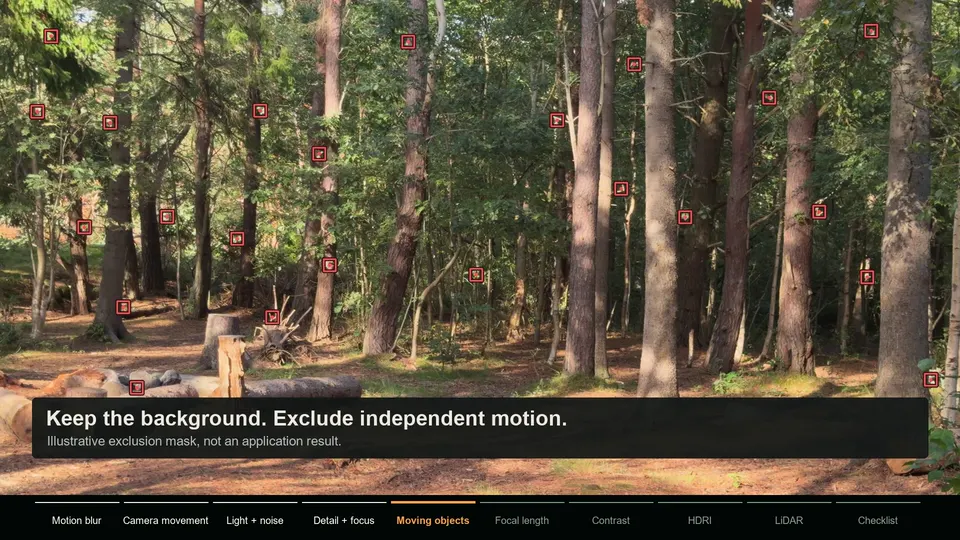
With the Camera tracking object active, track only static features; Detect Features with Outside Annotated Area keeps markers off the moving object. Solve, clean, and refine the focal length and distortion here.
- 2 Orient the scene
Set the floor, origin and scale and run Setup Tracking Scene, so the scene camera gets a Camera Solver constraint.
- 3 Solve the object
Add a tracking object, track the moving object and click Solve Object Motion. It uses the camera data the camera solve refined.
- 4 Constrain and scale
Add the Object Solver constraint with Camera set to the solved camera, then fix the object scale as described below.
How to set the scale of an object track
A solve cannot know absolute size: a small object close to the camera and a large one further away look identical through the lens. The object solve has its own scale, independent of the camera solve, so with a moving camera the object can match the footage perfectly through the camera yet float above the ground or sink into it when seen from another angle.
- From a measurement. With the tracking object active, the Solve tab shows an Object panel. Select two of the object's tracks with a known distance, enter it in Distance and click Set Scale.
- By eye. Change Scale in the same panel until the object sits on the ground at the right size. Check from a side view, not only through the camera.
- Orientation. With an object's tracks active, the Orientation tools (Floor, Set Origin, Set X Axis) act on the active 3D object instead of the camera.
Why object tracking fails in Blender, and how to fix it
| Problem | Likely cause | Fix |
|---|---|---|
| "At least 8 common tracks on both keyframes are needed for reconstruction" | Fewer than 8 of the object's tracks on both of its keyframes | Add tracks, pick keyframes closer together, or tick Keyframe. Full fix |
| The solve fails or the error is high | The object barely turns, the tracks sit on one flat face, or it is small in frame | Solve a stretch where it rotates, track more faces, or use a geometry tracker |
| Tracks die as the object turns | Features rotate out of view or change shape | Try the Affine or Perspective motion model, and add tracks as new faces appear |
| Right motion, wrong size or position | The object solve has its own scale | Set Scale in the Object panel |
| The object pops when the camera moves too | A weak camera solve, or object tracks in the camera solve | Fix the camera first and keep each set of tracks on its own tracking object |
| Nothing to track on the object | Smooth paint, glass, glossy plastic | A geometry tracker that follows the shape |
When is a geometry tracker the better tool?
Blender's object solver only knows the points you track. A geometry tracker aligns a 3D model of the object to the footage and tracks the whole model. That helps exactly where point tracking struggles: shiny objects with few features, objects that turn until every feature disappears, partial occlusion, and anything you already have a model of.
| Tool | Price | How it works | Platforms |
|---|---|---|---|
| Blender's Object Solver | Free, built in | 8 or more point tracks on the object, solved relative to the camera | Windows, macOS, Linux |
| KeenTools GeoTracker for Blender | $19.99 a month or $191.88 a year for freelancers, $699 a year for studios; 15-day trial | Tracks a 3D model aligned to the footage; estimates focal length, follows zoom, 2D and 3D masks, texture projection | Windows, macOS (Intel and Apple Silicon), Linux; Blender 2.80 or newer |
| Polychase | Free, open source (GPL) | Inspired by GeoTracker: 3D pins on a mesh, optical flow and pose solving; tracks the camera or the geometry; estimates focal length and principal point | Windows, macOS (Apple Silicon), Linux; Blender 4.2 or newer |
Both need a model, but not a detailed one: KeenTools' product page says a primitive is acceptable where precision is not critical, with tracking a car with a cube as its example. Polychase is at version 0.0.14, so expect rough edges. For more tracking add-ons, see the best camera tracking addons for Blender.
Can MotionMaster 3D track moving objects?
Not as a feature, and I would rather say that plainly: MotionMaster 3D is a camera tracking addon with no object tracker. What it does offer for shots with moving objects:
- Masks keep moving objects out of the camera solve. AI and polygon masks (Max) cover people and cars from a few clicks, and Heavy Tracking set to Use Black solves the camera from the background only. See how masks improve camera tracking.
- Camera Inversion for some static-camera shots. If the real camera did not move, you can track only the masked object with Use White and let Camera Inversion (Max) move the solved motion onto the object while the camera stays still. It needs a rigid, textured object that fills enough of the frame. It is a workaround, not an object tracker.
- Planar tracking for flat moving surfaces. For a phone screen or a sign on a truck, the Planar Tracker (Max) can publish Object Motion: an animated plane parented to the camera.
- A camera to pair with Blender's object solver. The Object Solver constraint only reads the animated camera, so any correctly solved camera works, as long as the clip's camera data matches it and the clip frames line up with its keyframes.