What "At least 8 common tracks on both keyframes" means
Blender's camera solver starts from two frames, Keyframe A and Keyframe B. It reconstructs the camera and 3D points from the tracks visible on both, then adds every other frame and track to that starting solution. Eight is the number of matches the classic eight-point method needs to relate two views, and libmv's own keyframe selection skips any pair with fewer than 8 shared tracks for that reason (keyframe_selection.cc).
The check itself lives in BKE_tracking_reconstruction_check() in tracking_solver.cc. It counts the tracks of the active tracking object that have an enabled marker exactly on Keyframe A and exactly on Keyframe B. Below 8, Solve Camera Motion stops with this message before anything is solved.
Two Solve panel options bypass the count. Tripod returns before counting, because the rotation-only solver has no keyframe pair; the manual suggests 5 to 10 tracks per frame for it. Keyframe skips the pre-check but not the requirement: if the pair the solver ends up with shares fewer than 8 tracks, it fails later with Failed to solve the motion: most likely there are no good keyframes (reconstruction.cc).
How to see how many tracks your keyframes share
Switch the Movie Clip Editor's view from Clip to Dope Sheet in its header. Each track is a row and its tracked frames form a dark bar. The background turns red on frames with fewer than eight tracks and yellow on frames with eight to sixteen (manual).
The dope sheet counts tracks per frame, while the error counts tracks shared by two frames. A range without red can still fail if the tracks on Keyframe A die before Keyframe B and new ones take over. Look for eight or more bars running through both keyframes; sorting by Longest helps.
Fix 1: Move Keyframe A and B to where your tracks are
This is the most common cause. Every new tracking object starts with Keyframe A at 1 and Keyframe B at 30 (tracking.cc), and Blender does not move them while you track. If you started tracking at frame 100, or most tracks die before frame 30, the defaults point at frames with almost no shared tracks.
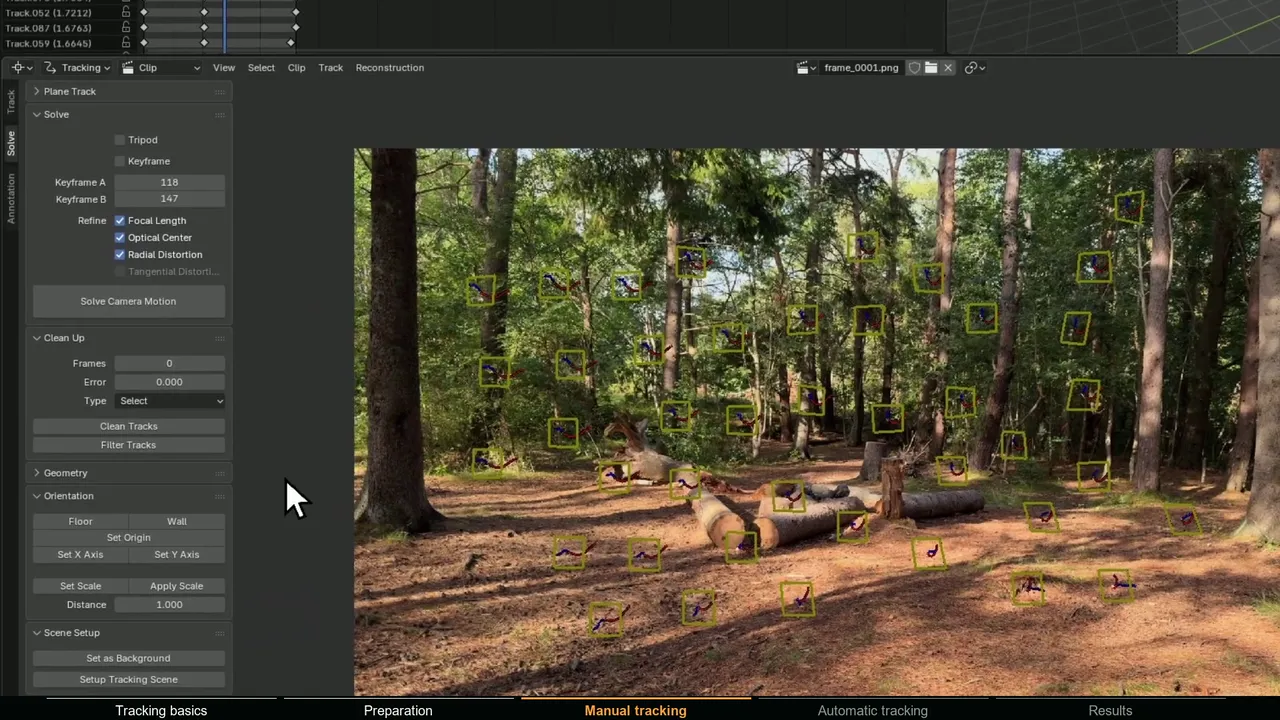
Turn off Keyframe and enter two frames inside the stretch where your longest tracks overlap, with real camera movement between them. Closer keyframes share more tracks, but too similar frames give little parallax. In the screenshot above, frames 118 and 147 work: about a second of walking, with dozens of tracks on both.
Fix 2: Turn on Keyframe and let Blender choose
Enable Keyframe in the Solve panel. In keyframe_selection.cc, a candidate pair must share at least 8 tracks, at least 80 percent of the markers on the two frames must belong to tracks seen on both, and full 3D geometry must explain the motion better than a flat homography, which is a test for real parallax. The chosen frames are written back into Keyframe A and B.
If no pair passes, Blender falls back to your Keyframe A and B, which is how this message turns into Failed to solve the motion. Keyframe cannot rescue a shot without parallax either; see Fix 7.
Fix 3: Make your tracks last longer
A track ends when the tracker cannot find its pattern on the next frame with at least the Correlation value (0.75 by default), or when the feature leaves the frame. Blender disables the marker there and the track stops counting.
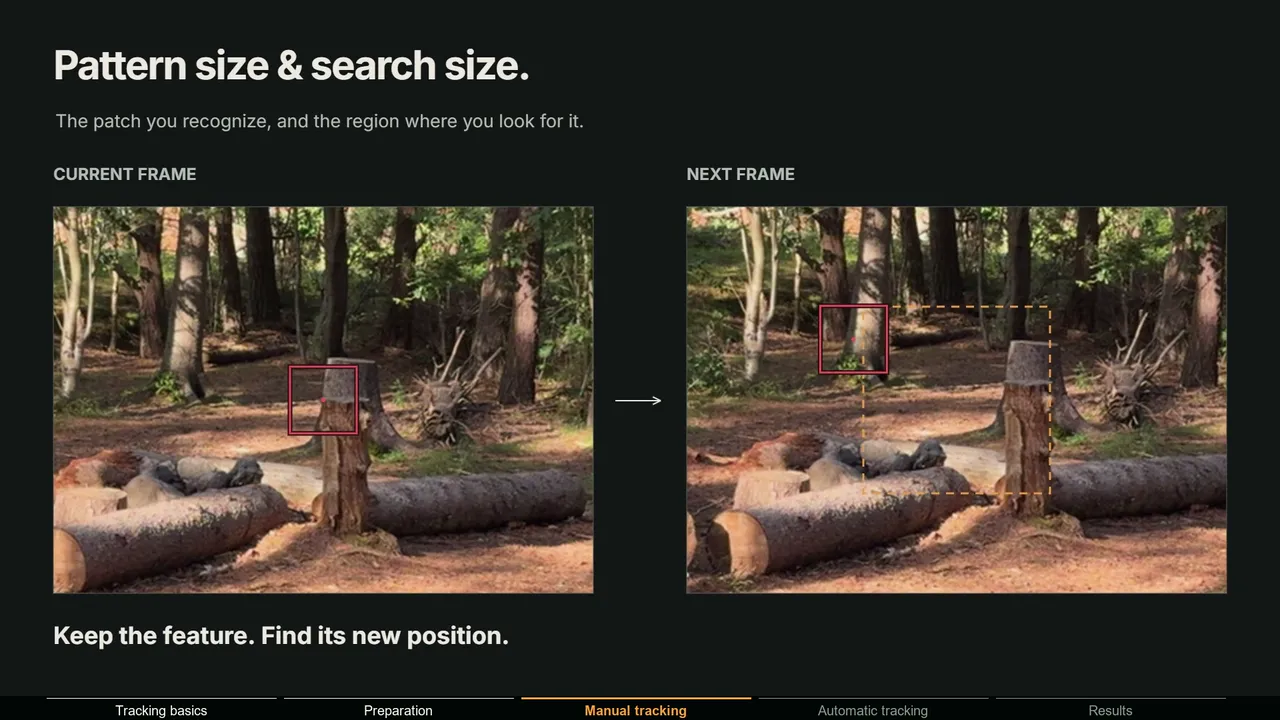
- Raise Search Size (71 px by default) for fast camera moves.
- Change the Motion model from Loc to Affine or Perspective for features that rotate or change shape.
- Track both ways from mid-shot: Track > Track Motion > Backwards (Shift+Ctrl+T) and Forwards (Ctrl+T).
- Choose features that stay in view, such as ground texture, corners and bark.
Fix 4: Add more tracks between the keyframes
Go to a frame between the keyframes and run Track > Detect Features. Its defaults are a Threshold of 0.5 and a Distance of 120 px between features; lower Threshold for more features on low-contrast footage, lower Distance to pack them closer. Track the new markers in both directions so they reach both keyframes. Ctrl+click adds a marker by hand.
Eight is the minimum, not a target. A few dozen good tracks over near and far features give a far more stable solve. As the manual warns, tracks on bad features reduce accuracy, so do not mark blur, sky or moving things just to raise the count.
Fix 5: Check the scene frame range before you track
Tracking a sequence stops at the scene's End frame going forwards and its Start frame going backwards (tracking_ops_track.cc). A new scene ends at 250, so a 400 frame clip tracked forwards silently stops there, and a Keyframe B of 300 has no markers. Click Set Scene Frames in the Clip panel of the Track tab, then track again. Short clips hit the same wall: a 24 frame clip has no frame 30 for the default Keyframe B.
Fix 6: Check disabled markers and the active tracking object
If you disabled markers around a keyframe (right-click, Disable Markers), those tracks no longer count there. Use Enable Markers or move the keyframe.
Then open the Objects panel in the Track tab of the sidebar. The Camera and every Object you added have their own tracks and keyframes, and the button reads Solve Camera Motion or Solve Object Motion depending on which is active. Object tracks fail this check more often because a moving object fills only part of the frame. More in object tracking in Blender.
Fix 7: Use the Tripod solver for pans and tilts
If the camera only rotates from one spot, a normal solve has no parallax to work with. Turn on Tripod: Blender skips the 8 track check and solves rotation only. The MotionMaster 3D Tripod Tracker, in the Max tier, also estimates the focal length. See tracking pan and tilt shots in Blender.
What to check after the error is gone
Passing this check only means the solver can start. If it reports Some data failed to reconstruct (see console for details), read what that warning means; if the solve error is high, see how to fix a high solve error. MotionMaster 3D Heavy Tracking avoids the question entirely: it matches features across the whole sequence without keyframes or manual tracks.