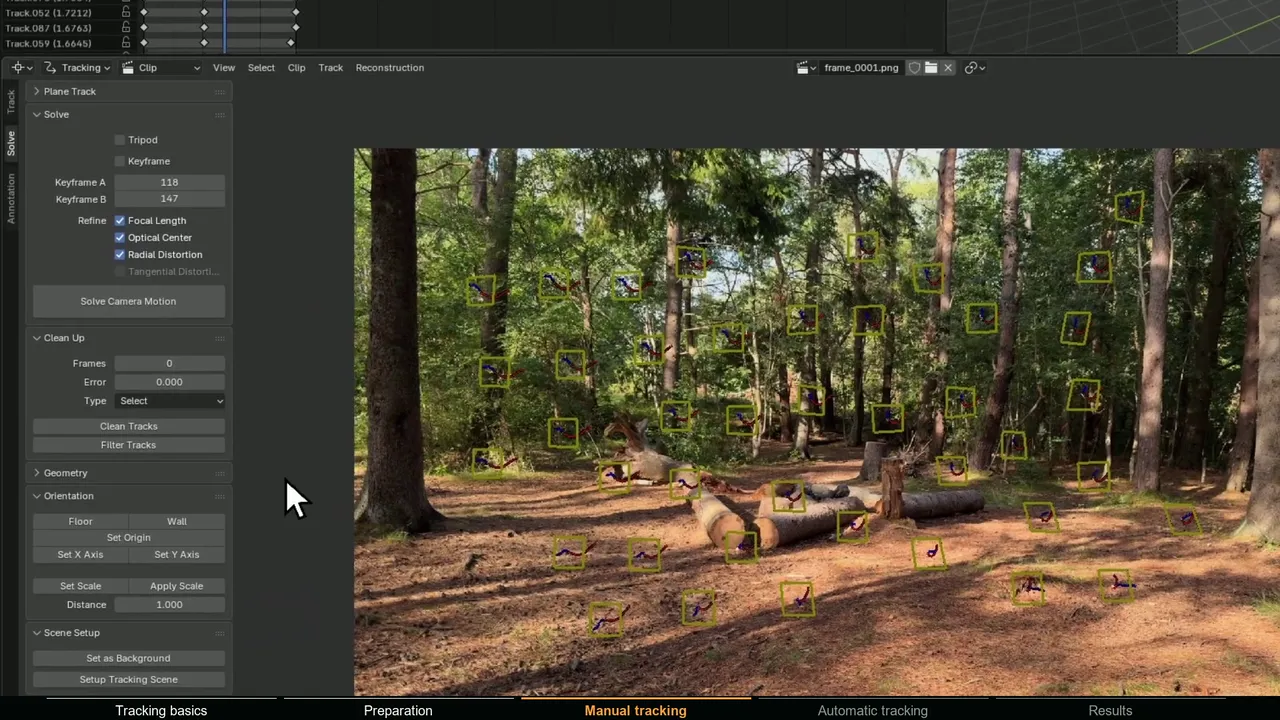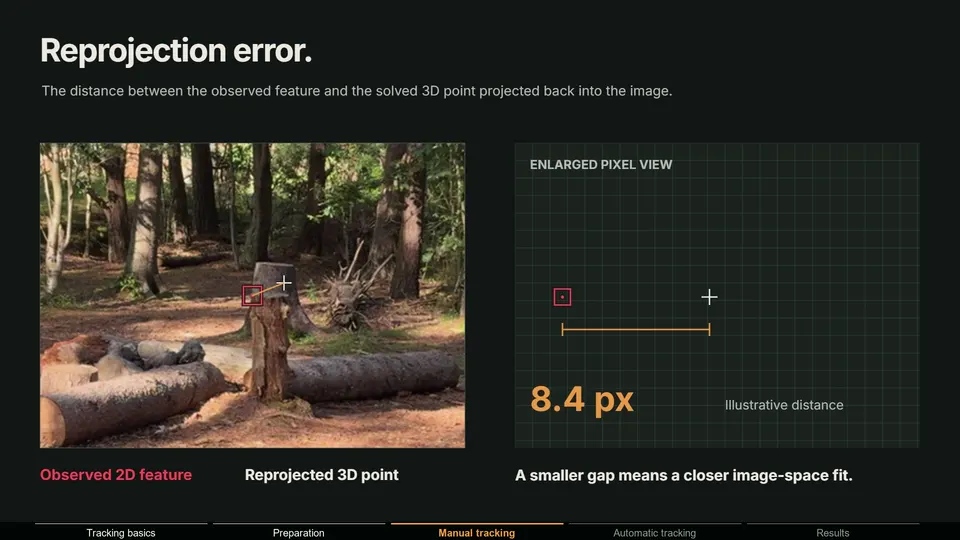
What "Some data failed to reconstruct" means
When libmv finishes solving, Blender copies the result into the movie clip in reconstruct_retrieve_libmv_tracks() (tracking_solver.cc). It asks for a 3D position for every track and a camera for every frame from the first to the last tracked frame. Each track without a position and each frame without a camera is printed to the console, and the function reports that something is missing. The Solve Camera operator then shows this warning instead of the usual Average re-projection error message (tracking_ops_solve.cc).
The solve is not thrown away. Blender marks the reconstruction as valid and stores the average error before this step (tracking_solver.cc), so the header still shows Solve error, and every camera and bundle that did solve stays in the clip. Compare that with Failed to solve the motion: most likely there are no good keyframes, which means the whole solve failed, and with the 8 common tracks error, which stops the solve before it starts.
How to open the console and read it
- 1 Open the console
On Windows, use Window > Toggle System Console; the entry only exists on Windows (manual). On macOS and Linux, start Blender from a terminal and the messages print there.
- 2 Solve again
Click Solve Camera Motion once more, so the console shows fresh output for your current tracks.
- 3 Read the track lines
Unable to reconstruct position for track #12 'Track.012'names a track with no bundle. The number is the track's position in the list, counted from 0. Search for the name in quotes. - 4 Read the frame lines
No camera for frame 214names a frame the solver could not place a camera on. It is a clip frame number, which equals the scene frame when the clip's Start Frame is 1.
You may also see lines containing POINT BEHIND CAMERA. They come from libmv's triangulation (intersect.cc) and mean a track's 3D point landed behind one of the cameras, so it was rejected. For the full solver log, start Blender with the --debug-libmv command line argument. It is verbose, but it shows how many solved tracks each frame had and which frames could not be placed.
Why tracks fail to reconstruct
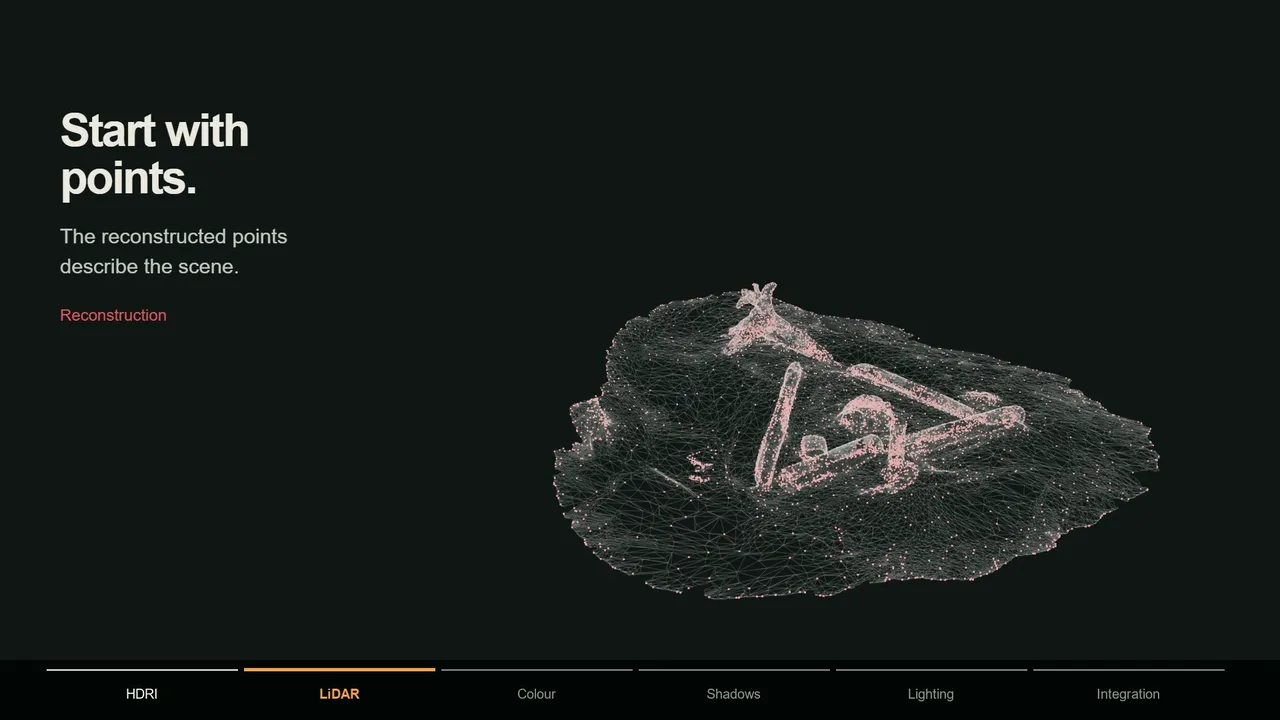
To give a track a bundle, libmv triangulates it from its markers on frames that already have a solved camera. It needs at least two such frames (pipeline.cc), and the resulting point must sit in front of every camera that sees it. Tracks fail when they cannot meet that:
- Too short. A track with a marker on a single frame cannot be triangulated. Detect Features leaves these behind when you detect on a frame and never track the new markers.
- Only on unsolved frames. A track that lives entirely at the start or end of the clip, where no camera could be solved, never sees two solved cameras.
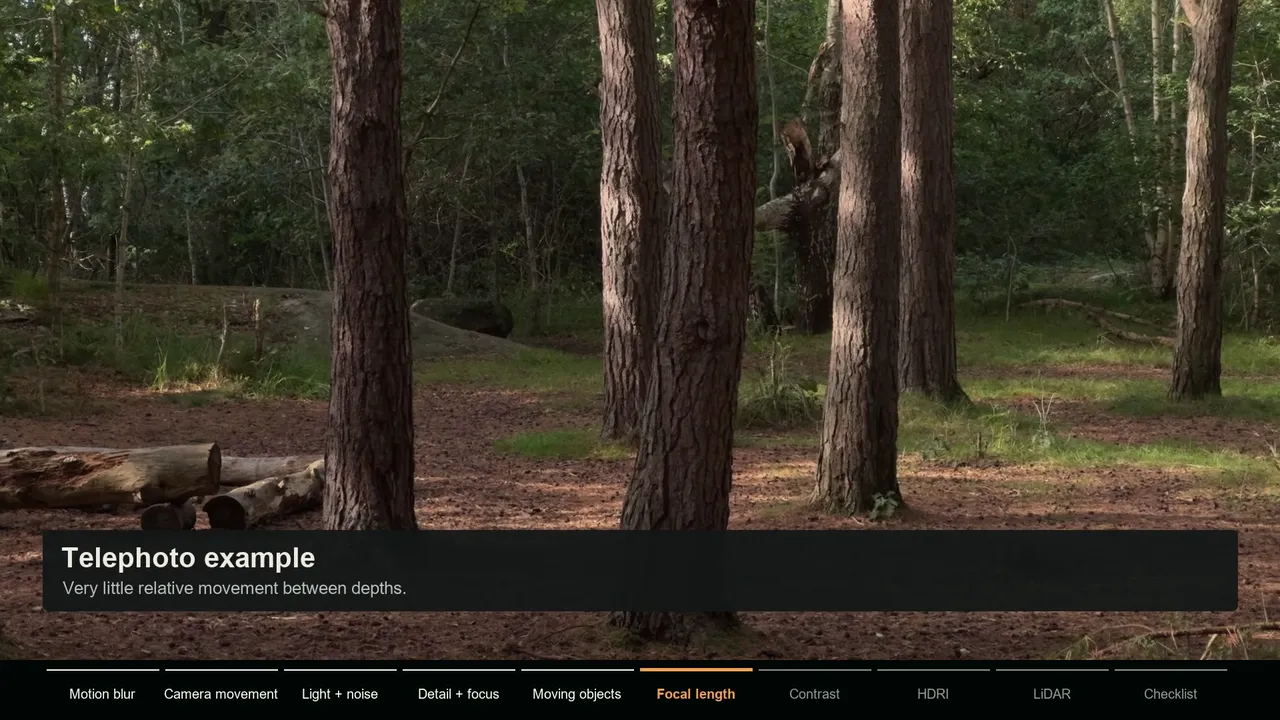
- No parallax. Sky, clouds, distant hills and features near the vanishing point barely shift as the camera moves. Their depth is almost undefined, and noise can push the point behind the camera.
- Bad tracks. A track that jumps between features or slides along an edge triangulates to a nonsense position. Sometimes it fails, sometimes it gets a bundle with a high error, so check both.
Why frames get no camera
libmv places a camera on a frame by resection, and it only tries when at least 5 tracks that already have bundles are visible on that frame (pipeline.cc). Frames that never reach five get no camera. The usual places are the start and end of the clip, where tracks have not started yet or have already died, whip pans, heavily motion blurred stretches and moments when something covers most of the frame.
The range the solver has to fill is not the scene frame range. It runs from the first to the last enabled marker of any track in the tracking object (tracking_solver.cc). One stray track that continues 100 frames past the others stretches that range, and every frame it covers alone becomes No camera for frame. After the solve, unsolved frames show as a thin red strip along the bottom of the Clip editor.
Is the solve still usable?
| What failed | Effect on the camera | What to do |
|---|---|---|
| A few tracks | None. Those tracks simply have no 3D point | Usually safe to delete them and move on |
| Many tracks | Fewer points hold the solve together | Check focal length, keyframes and a test object before trusting it |
| Frames at the start or end | The camera holds the nearest solved pose | Trim those frames from the shot, or add tracks that cover them |
| Frames in the middle | The camera is blended between the solved frames on either side | Not usable for VFX on those frames. Add tracks and solve again |
Failed tracks also have no bundle, so you cannot use them for Floor, Set Origin or Set Scale. If Set Floor complains about bundles, this is often why.
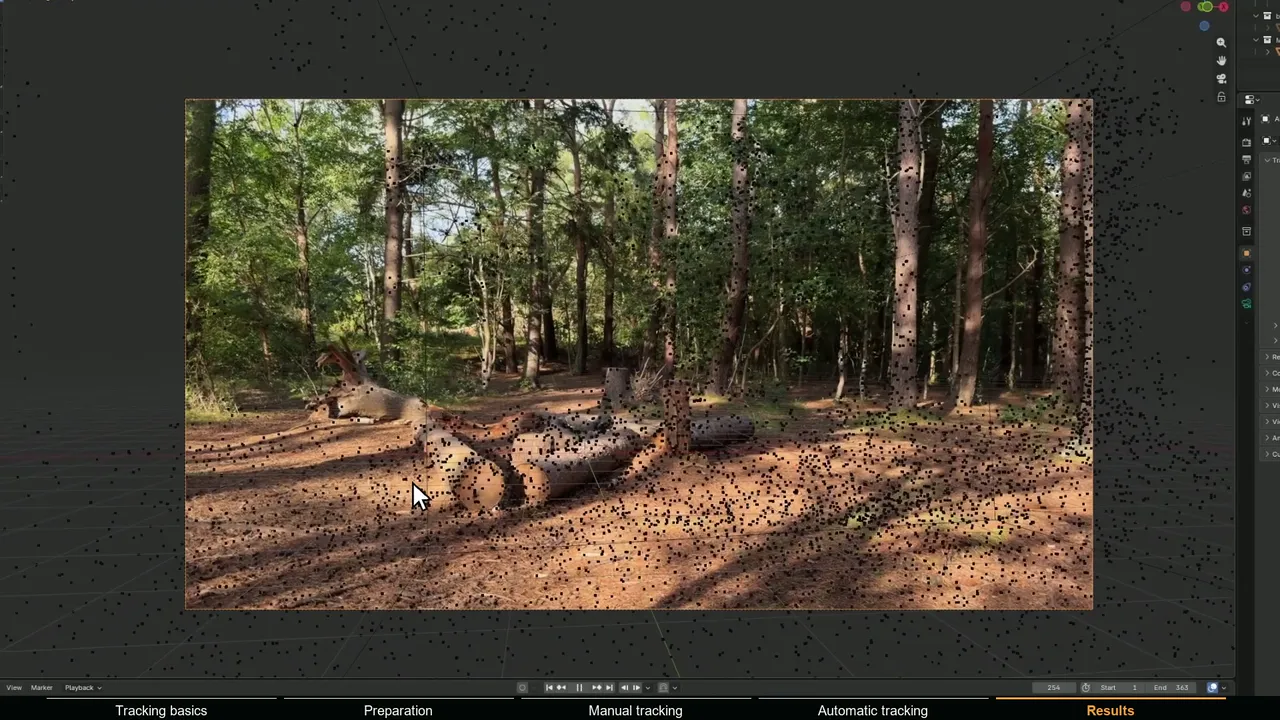
How to clean up failed tracks
- 1 Select them
Choose Select > None, then Select > Select Grouped > Failed Tracks (Shift+G in the Clip editor). It selects every track of the active tracking object that has no bundle.
- 2 Look before you delete
Scrub through the shot. Tracks on sky, distant detail or moving things can go. A good ground track that was only too short is worth tracking further instead.
- 3 Delete or extend
Press X to delete the selection, or extend the useful tracks with Track Motion and keep them.
- 4 Solve again
Click Solve Camera Motion. If the console only lists tracks you have decided to keep, you can stop there.
How to fix frames with no camera
- Add tracks where coverage drops. Go to the first failed frame, run Detect Features and track the new markers in both directions. In the Dope Sheet view, frames with fewer than eight tracks have a red background.
- Stagger track lifetimes. If many tracks die on the same frame, the following frames lose their support at once. Start new tracks before the old ones end.
- Remove stray tracks that run far beyond the rest of the shot.
- Trim what cannot be solved. A whip pan or a burst of motion blur at the end of a shot is often better cut than solved.
- Use Tripod for rotation-only shots, where a normal solve has no parallax to place cameras with. See camera vs planar vs tripod tracking.
MotionMaster 3D reports the same thing as a number. After a Heavy Tracking run, Reg in the Last Result box is the share of frames that got a camera, and 100% means every frame is solved. If a clip falls short, the docs recommend moving to a higher preset before changing individual parameters.