What "Three tracks with bundles are needed to orient the floor" means
The message comes from set_plane_exec() in tracking_ops_orient.cc, the operator behind both Floor and Wall. Before doing anything it calls count_selected_bundles() (same file) and cancels unless the result is exactly 3. That function looks at the tracks of the active tracking object and counts a track only if all of this is true:
- It is selected in the Clip editor.
- It is not hidden. Hidden tracks never count, even when selected.
- It has a bundle, meaning the solver gave it a 3D position.
So either fewer or more than three such tracks are selected, or some selected tracks have no bundle. Wall shows the same floor message because it is the same operator.
What is a bundle in Blender camera tracking?
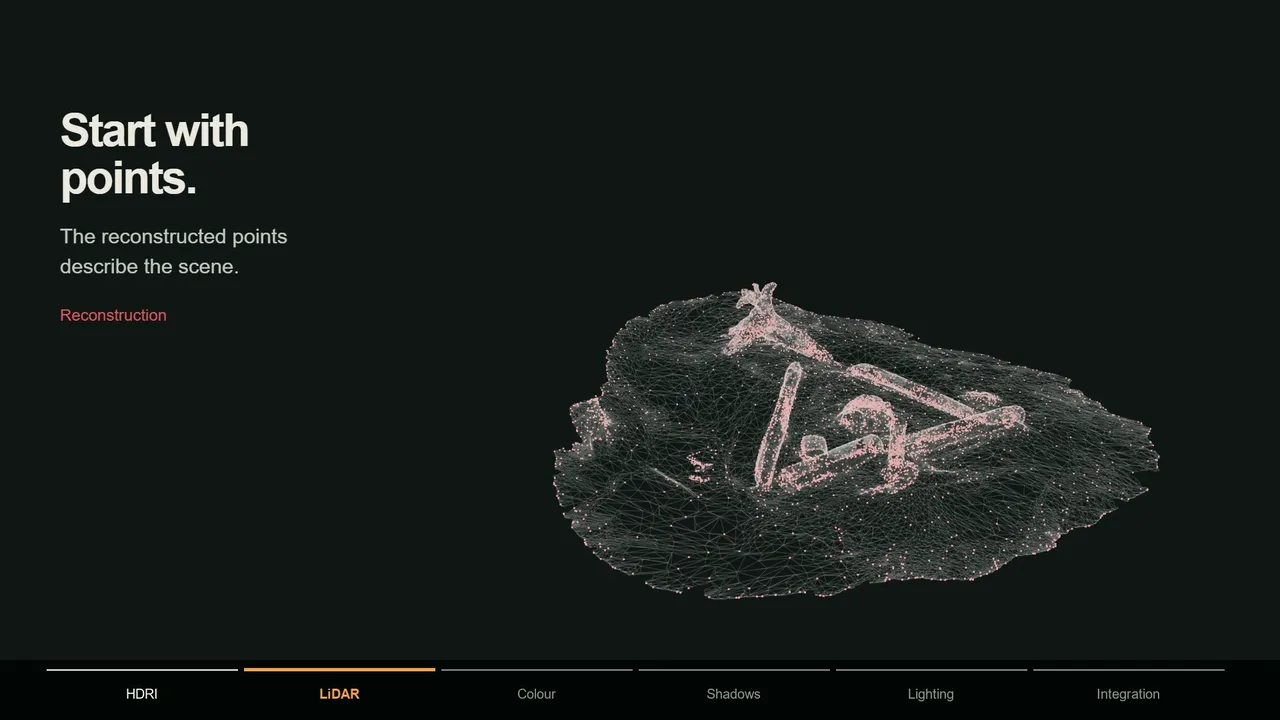
A bundle is the reconstructed 3D position of a track, and a track only has one after a successful Solve Camera Motion. Tracks that failed to reconstruct have none, and Clear Solution removes all of them.
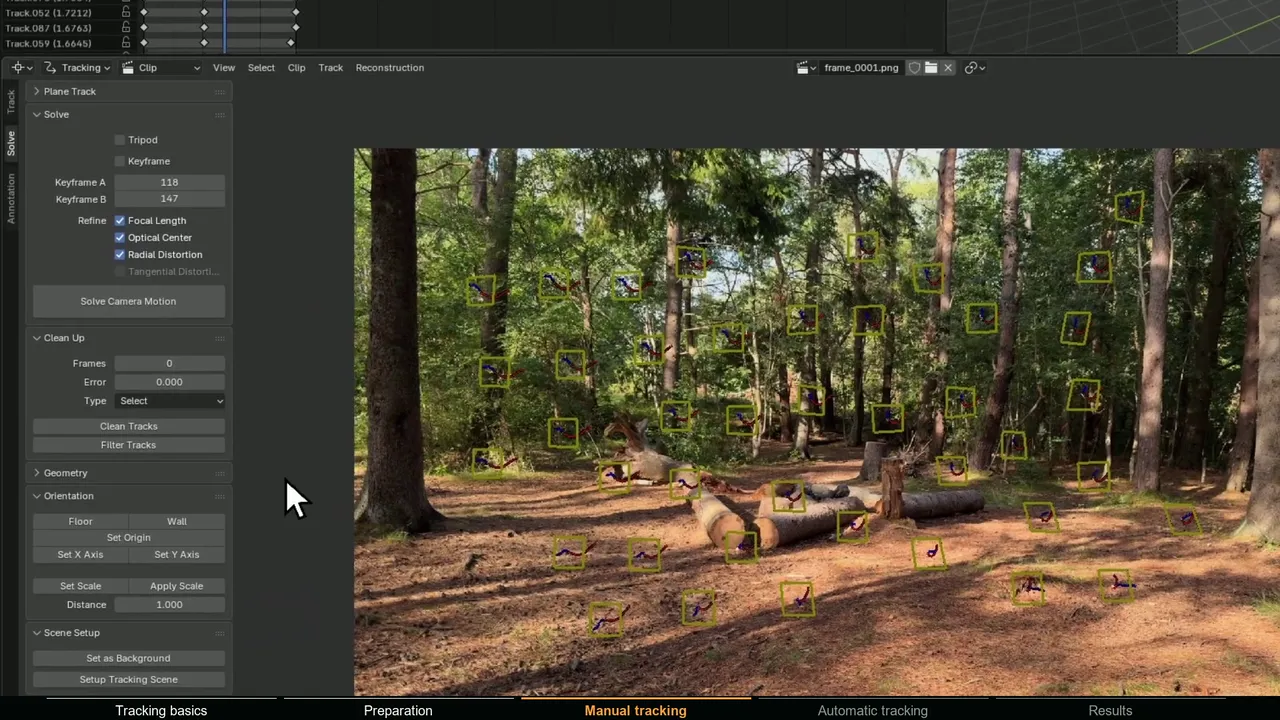
To see which tracks have one, enable 3D Markers under Marker Display in the Clip editor's Overlays popover; each bundle is drawn where it projects into the footage. The 3D Viewport's Motion Tracking overlay shows them in space. Select > Select Grouped > Failed Tracks selects the tracks that have none.
How to fix the error
- 1 Solve the camera first
Click Solve Camera Motion and check that the header shows a
Solve error. After Clear Solution there are no bundles to orient with. - 2 Check the active tracking object
In the Objects panel of the sidebar, make sure the entry you want to orient is active. Tracks belong to one object, and only its tracks are counted.
- 3 Select exactly three ground tracks
Choose Select > None, click one track on the real ground and Shift+click two more. Pick tracks far apart, in a wide triangle. The last one you click becomes the active track.
- 4 Click Floor
Use Floor in the Orientation panel of the Solve tab, or Reconstruction > Set Floor. If the error comes back, one of the three is hidden or has no bundle.
What Set Floor does to your scene
Set Floor never touches the footage or the tracks. It changes the transform of the camera that uses this clip, or of its parent if it has one (tracking_ops_orient.cc). The Camera Solver constraint multiplies the camera's own transform with the solved motion (constraint.cc), so changing that transform repositions the whole solved scene.
The three bundles define a plane. Blender rotates the camera so that plane becomes the floor at Z = 0 (manual), puts the active track at the origin, uses another of the three to aim the X axis, and flips the result if the camera would otherwise end up below the floor.
Why Set Floor sends the camera flying or tilts the scene
If the error is gone but the result looks wrong, one of these is almost always the reason:
- The solve has no real scale yet. libmv scales every solve so that the camera position farthest from the average camera position is exactly 1 unit away (reconstruction_scale.cc). A small camera move with distant floor points puts those points dozens or hundreds of units away, so with the origin on one of them the camera seems to fly off. Nothing is broken: use Set Scale.
- A point is not on the floor. One track on a log, a wall or a bush tilts the plane, and the whole scene rotates with it.
- The points are nearly in a line or bunched together. They barely define a plane, so a small depth error becomes a large tilt. Use a wide triangle.
- A bundle has a bad depth. Distant and high-error tracks have the least reliable depth. Sort the Dope Sheet view by Average Error and prefer low-error tracks.
- You solved again after orienting. Every solve starts over with the first solved camera at the origin (tracking_solver.cc) and a new scale, while the camera object still carries the old alignment. Clear the camera with Object > Clear > Location, Rotation and Scale, then orient again.
- You moved the camera afterwards. The camera's transform is the alignment, so moving it moves the whole solve off your floor. Align first, place CG second.
- The camera is already baked. Orient while the Camera Solver constraint still drives the camera, before Constraint to F-Curve. Once the camera has keyframes, they overwrite the transform the orientation tools set.
Set Origin, Set Axis, Set Scale and Wall: what each needs
| Tool | Tracks with bundles | What it changes | Message if the selection is wrong |
|---|---|---|---|
| Floor | Exactly 3 | Rotates and moves the camera so the three lie flat at Z = 0, with the active track at the origin | Three tracks with bundles are needed to orient the floor |
| Wall | Exactly 3 | The same, but places the three on the XZ plane | The same floor message |
| Set Origin | 1 or more | Moves the camera so the selected bundle, or the average of several, sits at the world origin. Translation only | At least one track with bundle should be selected to define origin position |
| Set X Axis, Set Y Axis | Exactly 1 | Rotates the camera so that track lies on the axis, keeping the origin | Single track with bundle should be selected to define axis |
| Set Scale | Exactly 2 | Scales the camera object so the two are Distance apart | Two tracks with bundles should be selected to set scale |
| Apply Scale | Exactly 2 | Scales the solve data itself instead of the camera object (camera tracks only) | The same scale message |
A reliable order: Floor with three ground tracks, then Set Origin if you want the origin on a different ground track, then Set X Axis on a track along a real line such as a curb or the base of a wall, and finally Set Scale with two tracks a known distance apart, entered in Distance. Set Scale changes the camera object's Scale, which also scales its children; Apply Scale scales the solve itself and keeps the camera at 1, cleaner if you parent objects to the camera or export it.
How floor alignment works in MotionMaster 3D
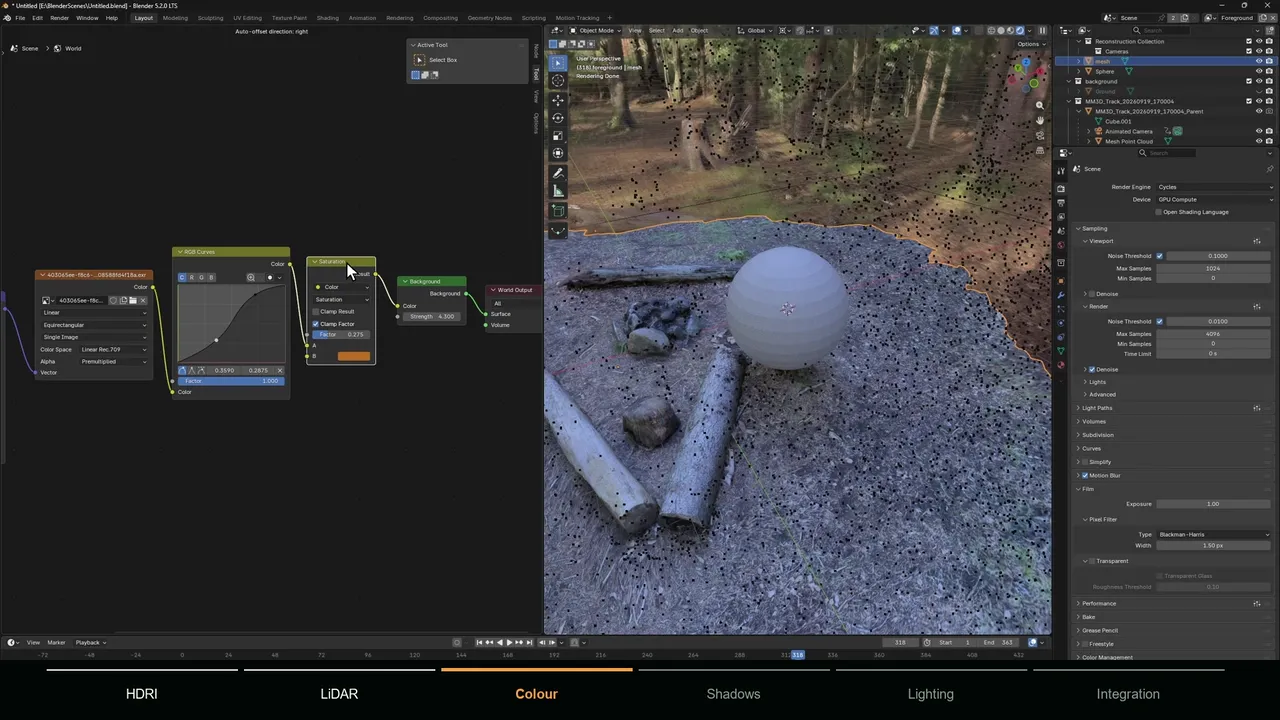
If you track with MotionMaster 3D, the result comes into Blender as a camera and a point cloud under one parent object, and orientation happens in the Aligner panel, which is included in Standard. Select the point cloud, enter Edit Mode, select points that lie on the real ground (at least three, as many as you like) and click Floor. The add-on fits a plane through all selected points and moves the parent so that plane lies flat on Blender's XY plane at Z = 0. If the result is upside down, click Flip.
Because the plane is a best fit through every selected point, one slightly wrong point does not tilt the scene the way one bad track out of three can.