Why a low solve error does not mean the track is right
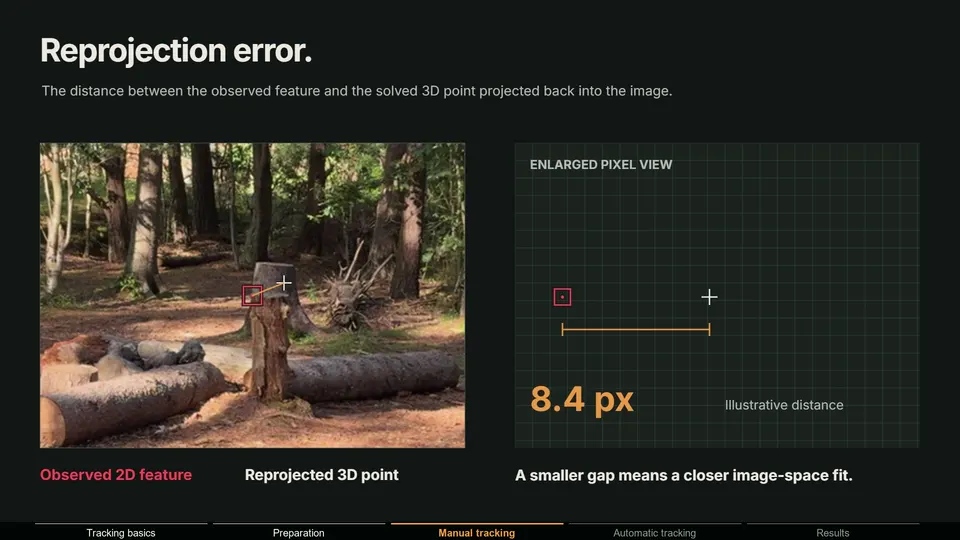
The solve error is the average reprojection error: for every track, how far its solved 3D point lands from the 2D marker when projected through the solved camera. It is measured only where you have tracks, and only against those tracks. That leaves a lot it cannot see:
- Your CG object. It has no tracks, so it is not part of the measurement at all.
- Areas without tracks. The solve can be tight on background trees and loose on the floor where your object stands.
- Ambiguity. Some wrong combinations of focal length, depth and camera path explain the same tracks almost equally well.
- Everything after the solve. Lens distortion in the comp, frame offsets and motion blur all happen downstream of the number.
A very low error from few tracks is a warning sign of its own. Close to the minimum of 8 tracks, the solver has enough freedom to fit them almost perfectly. A 0.00 px solve from ten tracks says less than a 0.4 px solve from eighty.
How to tell which problem you have
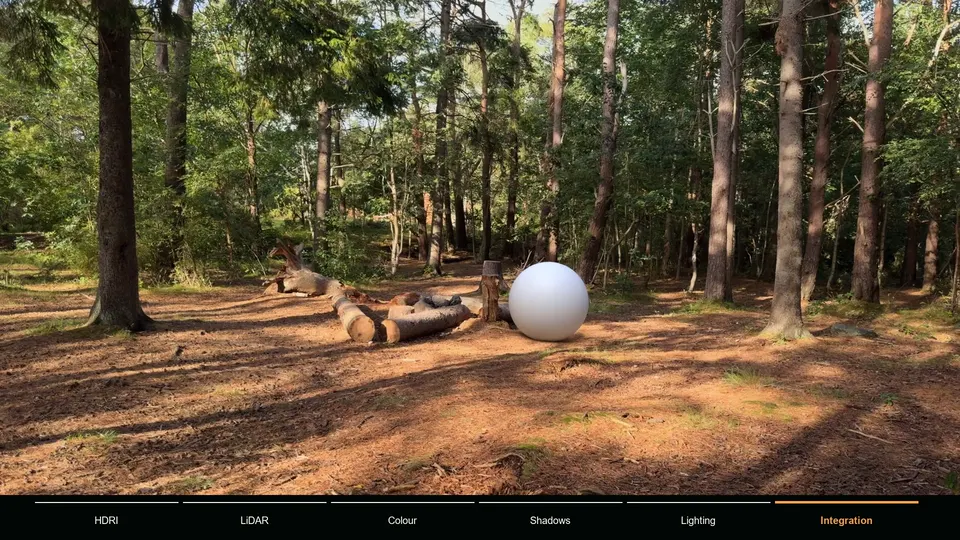
Put a small test object, a cube or a plane with a checker texture, exactly where your real object touches the ground. Scrub through the shot in camera view, zoomed in on the contact point, and judge it against a ground feature right next to it. Then match what you see:
| What you see | Most likely cause |
|---|---|
| Steady drift in one direction while the camera moves | Object at the wrong depth, or too few tracks near it |
| Slides more the closer it gets to the frame edge | Lens distortion not matched |
| Leads or lags the plate on every fast move | A frame offset between plate and camera |
| Jumps or freezes on a few frames only | Frames without a solved camera, or bad tracks on those frames |
| Wobbles only during fast pans | Rolling shutter |
| Looks jittery although the camera path is smooth | Motion blur in the plate but not in the render |
| Contact point holds, but the perspective looks wrong | Wrong focal length or wrong scale |
Cause 1: The object is not on the real ground
This is the most common reason. A Blender solve has an arbitrary orientation and no real-world size: libmv scales every solve so the camera path fits inside a radius of one unit (reconstruction_scale.cc). Blender's grid floor is therefore not your floor. An object standing on the grid, or eyeballed into place, sits a little in front of or behind the real ground, and anything at the wrong depth moves with the wrong parallax. The contact point drifts as soon as the camera moves.
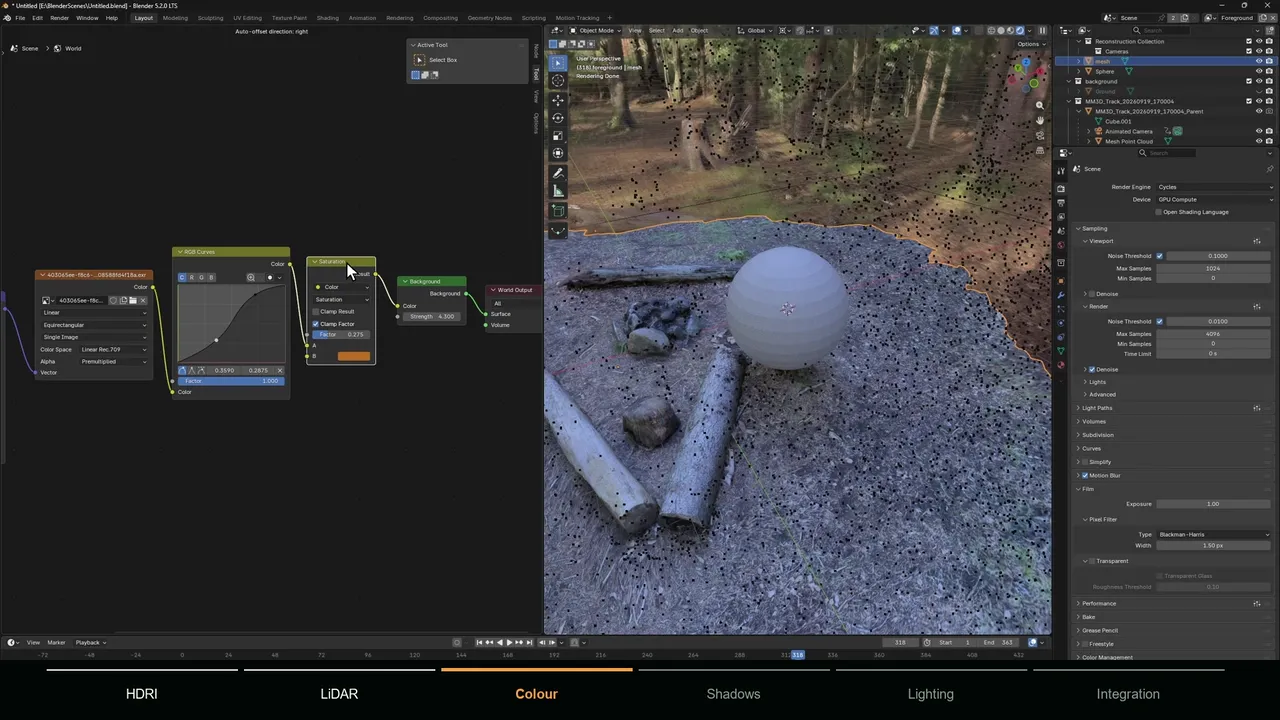
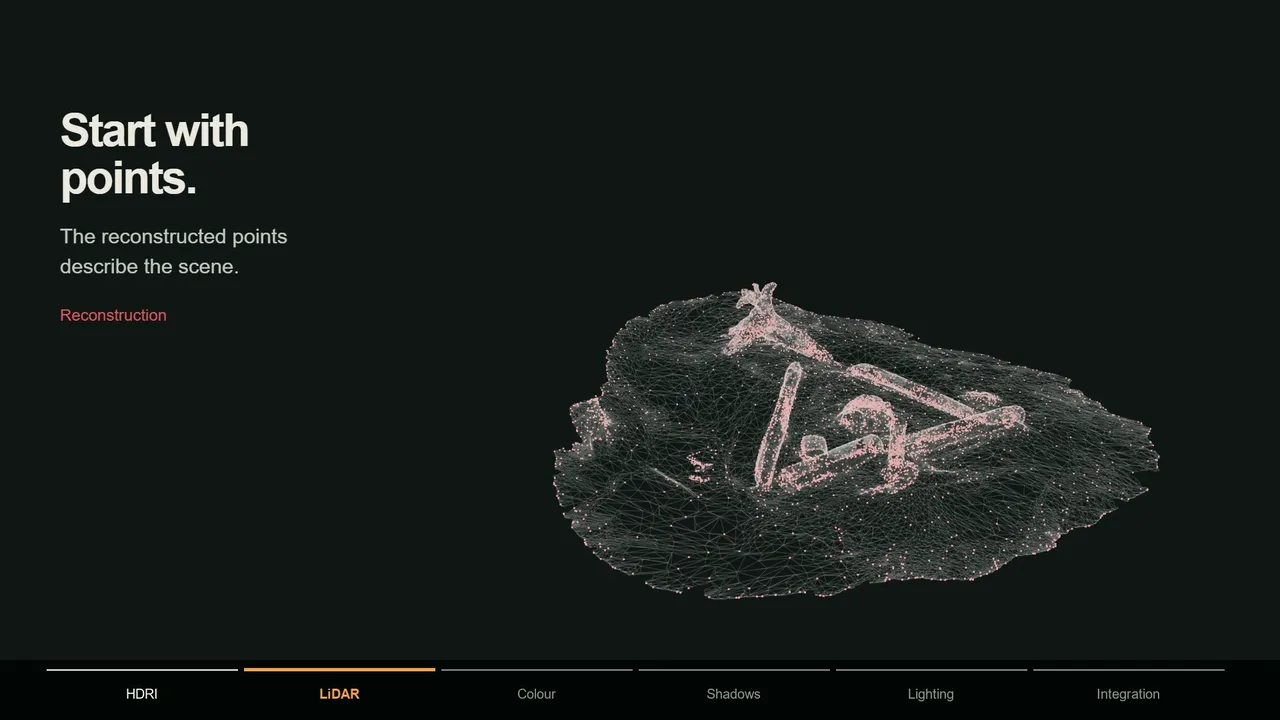
Build on the reconstruction instead. Set the floor and scale from real ground tracks first (see the Set Floor guide), then select the ground tracks around the contact point and use Reconstruction > 3D Markers to Mesh. It creates a mesh whose vertices are exactly the solved points, so you can snap the object to them. Wrong scale makes an object look the wrong size; wrong depth is what makes it slide.
Cause 2: Too few tracks near the contact point
The solve is only as good as the tracks around the spot you care about. If every track sits on distant trees and your character stands on the floor in the foreground, the floor is extrapolated from far away, and small errors grow exactly where the feet are.
Add tracks on the ground around the contact point, at roughly the same distance from the camera as the object, and keep them alive through the shot. Check their individual error in the Dope Sheet view sorted by Average Error, then solve again. The overall number may barely change; the sliding usually does.
Cause 3: A wrong focal length that still gives a low error
A wider lens with the scene close and a longer lens with the scene farther away can produce nearly the same image motion, especially on a long lens or a shot with little parallax. The solver can settle on the wrong one with a low error. The camera path then has the wrong shape, and an object at a depth without tracks drifts.
Warning signs: the refined focal length is far from the real lens, a flat floor comes out curved or tilted in the point cloud, or right angles in the scene are not right angles. Enter the real Focal Length and Sensor Width in the Camera panel of the Track tab, and only enable Refine for the focal length when that starting value is close. For phone footage, use the 35 mm equivalent focal length with a 36 mm sensor width.
Check the camera you render with too. After every solve, Blender copies the clip's focal length, sensor width and lens shift to the scene camera and sets the render resolution to the clip size (tracking.cc). Render through a different camera, change the lens afterwards or change the render aspect ratio, and the CG no longer matches the plate.
Cause 4: Lens distortion in the plate but not in the render
Real lenses bend the image, phones and wide lenses most of all, while Blender renders through a perfect pinhole. If the solve refined K1 and K2, the solved camera matches the undistorted image. Composite undistorted CG over the original, distorted plate and the two drift apart, more and more toward the edges of the frame.
Fix it in the compositor with the Movie Distortion node: Distort on the render, or Undistort on the plate. The manual recommends distorting the render when the footage bulges outward, because undistorting it would need pixels outside the frame. Check your viewport as well: a Movie Clip camera background has a Render Undistorted option, and without it you judge undistorted CG against a distorted plate, so edges appear to slide even when the render is fine.
MotionMaster 3D Heavy Tracking solves lens distortion together with the camera, with Simple Radial as the default model. The Max tier adds a choice of 12 camera models and exports 32-bit undistort and redistort STMaps for Nuke, Fusion and other compositors (lens calibration and STMaps). The full topic is in lens distortion in Blender.
Cause 5: The plate and the camera are off by a frame
A constant offset looks like sliding that follows the camera: the object leads or lags the plate on every fast move and settles when the camera stops. Inside Blender, a movie clip maps its frames to scene frames one to one, shifted by its Start Frame (movieclip.cc), regardless of frame rate. Two settings in Footage Settings behave very differently:
- Start Frame moves the clip together with all of its tracking data, so it cannot cause an offset.
- Frame Offset only changes which image file is loaded and does not move the tracking data. Change it after tracking and every track is off its feature by that many frames.
Outside the clip, check every place the plate enters the comp: an Image node or another program may start the sequence on a different frame than your render. Phone video is often recorded at a variable frame rate, so convert it once to a numbered image sequence and use that same sequence for tracking and compositing. Keep the scene frame rate equal to the footage, too: Blender matches frame by frame, but an editor that lines up render and plate by time drifts when the rates differ. Frames the solver could not place a camera on are held or interpolated, which shows up as slipping on exactly those frames.
Cause 6: Rolling shutter
Phone sensors and many other CMOS cameras read the image line by line. In a fast pan the top of the frame is captured slightly before the bottom, so verticals lean and the image wobbles. Blender's camera solver has no rolling shutter setting; it treats every frame as a single instant and cannot explain that skew. Tracks at the top and bottom of the frame disagree, and the object slips during fast moves while the average error still looks fine.
Avoid whip pans when you shoot on a phone, and solve the calmer part of the shot when you can. On the render side, Cycles can add a matching Rolling Shutter under Render Properties > Motion Blur (manual).
Cause 7: Motion blur that does not match
A plate shot at 1/50 s smears every feature during a fast move, and a perfectly sharp CG object over it reads as jitter or sliding even when the camera is correct. Turn on Motion Blur in Render Properties and match the shutter. Blender's Shutter value is in frames, so multiply the shutter time by the frame rate: 1/50 s at 25 fps is 0.5, and 1/100 s at 25 fps is 0.25.
The solved camera supports this: the Camera Solver constraint blends between solved frames for in-between times (constraint.cc), so camera motion blur follows the track.
How MotionMaster 3D reports these problems
After a Heavy Tracking run, the Last Result box shows more than one number. Reg is the share of frames that got a camera, so anything under 100% means held or interpolated frames. Reproj is the mean reprojection error. Stutter, from 0 to 1, measures how jerky the solved camera path is, which is exactly the kind of jitter an average error hides. In the Max tier, AI masks keep tracks off moving people and cars.
For flat surfaces such as screens and signs, the Track Workspace in Max plots Track Error (Measured), a per-frame photometric score of how well the tracked surface still matches the plate. Flat and low means locked, a spike marks the frame to inspect, and AdjustTrack corrects a slipping corner without overwriting the solve.