How the After Effects 3D Camera Tracker works
Select the footage layer and choose Animation > Track Camera, or apply Effect > Perspective > 3D Camera Tracker. It analyzes the clip in the background and shows the solved points as small colored crosses. The controls that matter, per Adobe's documentation:
- Shot Type: Fixed Angle of View, Variable Zoom, or Specify Angle of View (you enter the horizontal angle).
- Solve Method (under Advanced): Auto Detect, Typical, Mostly Flat Scene or Tripod Pan.
- Average Error: the average reprojection error in pixels, the same idea as Blender's solve error.
- Detailed Analysis: works harder to find features, at the cost of time and project size.
- Auto-delete Points Across Time: deleting a point removes the same feature on other frames.
Once solved, select a few ground points, right-click the target and choose Set Ground Plane and Origin. Then create the camera, plus nulls or solids on the points you need. Those layers are what you export.
Which tools export an After Effects camera to Blender?
After Effects has no Blender exporter. Its built-in route for tracker data is File > Export > Maxon Cinema 4D Exporter, and Blender cannot open Cinema 4D files. The tools I found, as of October 2026:
- After Effects to Blender export by adroitwhiz: an After Effects script plus a Blender add-on. Version 0.6.2 came out on January 30, 2026; the add-on needs Blender 4.2 or later. Use this one.
- ae-blender-camera-export: a camera-only fork of the above, last updated in 2020.
- AfterEffects-tracking-data-to-Blender: exports camera and null data to JSON, last updated in December 2023.
- AEtoBlender2.8: writes a Python file you run in Blender, last updated in 2020.
How to export an After Effects camera track to Blender
- 1 Install the After Effects script
Download it from the Releases page. In After Effects, use
File > Scripts > Install Script File..., restart, and enableAllow Scripts to Write Files and Access Networkin the preferences. - 2 Install the Blender add-on
In Blender, open
Edit > Preferences > Add-ons, chooseInstall from Diskand pick the downloaded .zip as it is. The author warns not to extract it or install only the__init__.pyfile. - 3 Prepare the comp
Select the tracker's camera and any nulls or solids you created on track points. Note the comp's frame rate and resolution in Composition Settings.
- 4 Run the export
With the Composition view active, run the script from
File > Scripts. Pick a file and a time range, tickExport selected layers only, and turn onBake transformsif the import looks wrong without it. - 5 Import into Blender
Choose
File > Import > After Effects composition data, converted (.json). Set the options from the next section before you click Import AE Comp. - 6 Add the footage and check
Load the footage as the camera background, or as a movie clip with
Set as Backgroundin the Movie Clip Editor, and scrub through the camera.
Why the imported camera is misaligned, and how to fix it
If points slide off the footage after import, the solve is usually fine and one of these settings is not.
Frame rate
The camera has one key per comp frame. If the comp's frame rate differs from the footage's, After Effects resamples the footage, the keys no longer match the source frames in Blender, and the error grows over the shot. Create the comp from the footage so the rates match before you track. On import, set Handle FPS to Use Comp Frame Rate, which also handles 29.97. Avoid Remap Frame Times for a camera track: it renumbers the keys to keep timing in seconds, while Blender matches footage frame by frame.
Start frame
After Effects comps start at time 0, and the importer puts that on Blender frame 0. Blender scenes start at frame 1 by default, and a movie clip's Start Frame sets the scene frame its first image plays on. If everything is one frame off, set the clip's Start Frame and the scene start to 0 (Adjust Frame Start/End sets the scene range), or move all camera keys one frame later. A footage layer that was moved or trimmed in the comp shifts the camera by the same amount.
Resolution and pixel aspect
Blender's render resolution needs the same aspect ratio as the comp, or the field of view no longer matches the footage. Tick Use Comp Resolution, which also copies the comp's pixel aspect ratio. That matters for anamorphic and other non-square pixel formats.
Focal length and film size
The After Effects camera's Zoom value is the distance from the lens to the image plane, in pixels. The importer converts it for you: it sets the Blender camera's Sensor Fit to Vertical and computes the focal length from the comp height and Blender's 24 mm default sensor height. Leave those settings alone: changing the Sensor Fit or sensor size afterwards changes the field of view.
To convert by hand, use the same axis for both values: focal length in mm = Zoom in pixels × sensor width in mm / comp width in pixels. A Zoom of 2000 px in a 1920 px wide comp with a 36 mm sensor (Sensor Fit set to Horizontal) gives 37.5 mm. The millimeter value only means something with its sensor size; the angle of view is what has to match.
Scale and up axis
After Effects measures position in pixels with Y pointing down; Blender uses meters with Z up. The importer swaps the axes and multiplies by Scale Factor, default 0.01, one pixel to one centimeter, as in Cinema 4D. The solve has no real-world scale, so parent the camera and empties to a new empty and scale that parent until something you know, such as a door, measures correctly. Scaling camera and points together does not change how anything lines up. Comp Center to Origin moves the comp center to (0, 0, 0).
How to turn After Effects track points into Blender empties
In After Effects, select the solved points you need, right-click the target and create a null, at the target center or one per selected point. Export the nulls with the camera and each becomes an empty in Blender at the same 3D position; solids become flat planes. Use them to place geometry or set up a ground plane for shadows, as in adding 3D objects to tracked footage.
Why After Effects camera tracks jitter and drift
If the settings are right and the camera still slides, the solve itself is the problem. The usual reasons:
- No lens distortion model. The 3D Camera Tracker's controls include no distortion setting, so it treats every lens as distortion-free. Phones and wide lenses bend the image toward the edges, so CG sticks in the middle of the frame and slides near the edges. See lens distortion in Blender.
- Limited control. Beyond shot type, solve method, Detailed Analysis and deleting points, you cannot add supervised tracks, choose solve keyframes or refine individual camera values.
- Moving objects. Adobe notes that moving objects can confuse the tracker. Delete their points, or give the layer an alpha channel that hides them.
- A guessed focal length. With Fixed Angle of View, After Effects estimates the lens. If you know it, use Specify Angle of View. The horizontal angle is 2 × arctan(sensor width / (2 × focal length)), so a 24 mm lens on a 36 mm wide sensor is about 73.7 degrees.
- Difficult footage. Long takes, motion blur and fast pans trouble any tracker, and here you have few tools to help. See what makes footage good for camera tracking.
When not to use After Effects: track in Blender instead
Keep the After Effects track when the shot is simple and the work stays in After Effects: text, graphics, a quick screen insert. When the CG is lit and rendered in Blender, tracking in Blender is usually faster than exporting and fixing a camera.
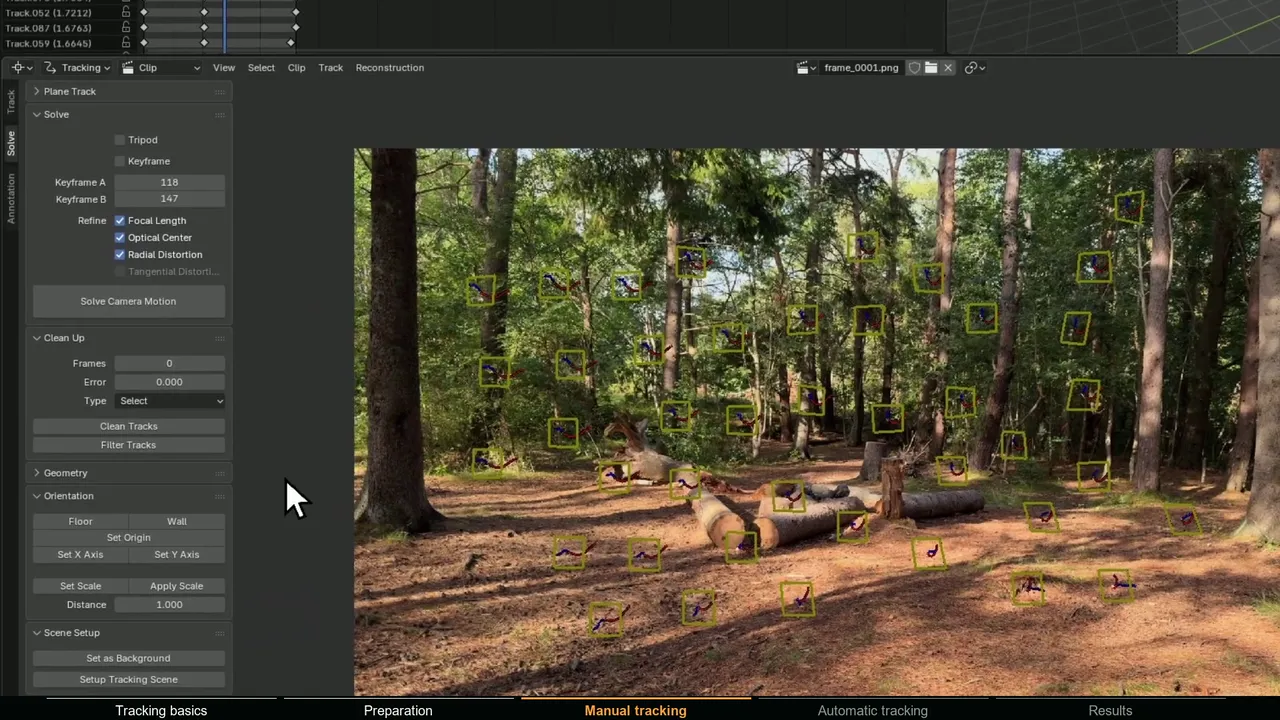
- Blender's built-in tracker is free and gives you the control After Effects lacks: supervised tracks, solve keyframes, a tripod solver, and refinement of focal length and radial and tangential distortion with several lens models. Footage and camera share one frame range, so there is nothing to offset. Start with Blender camera tracking.
- MotionMaster 3D, the addon I build, runs an automatic COLMAP and GLOMAP based solve inside Blender. Heavy Tracking solves the lens (Max adds a choice of 12 camera models) and handles zoom shots, and the importer keeps the source frame numbers so the camera stays aligned with the footage. Heavy Tracking is in Standard ($29.99). For jobs of 10 or 20 shots, Batch Processing runs the same operations on every sequence; it is in Max ($59.99). Windows only.
After Effects vs Blender vs MotionMaster 3D for camera tracking
| What matters | After Effects + export | Blender's tracker | MotionMaster 3D |
|---|---|---|---|
| Lens distortion | Not modelled, so wide and phone lenses slide near the edges | Solved and refined, radial and tangential, several models | Solved with every Heavy track; 12 COLMAP models and STMaps in Max |
| Frames line up with the footage | Only after matching frame rate, start frame and scale by hand | Yes, footage and camera share one frame range | Yes, the Smart Importer keeps source frame numbering and gaps |
| When the solve drifts | Few controls beyond deleting points and solving again | Full manual control: tracks, keyframes, refinement | Presets up to Extra High, with registered frames, reprojection error and stutter reported after each run |
| Moving people and cars | Delete track points by hand | Disable tracks or mask by hand | AI and polygon masks (Max) |
| 10 to 20 shots | One comp at a time | One clip at a time | Batch Processing with a watch folder (Max) |
| Platforms | Windows, macOS | Windows, macOS, Linux | Windows |
| Price (October 2026) | Included with After Effects, US$22.99 a month | Free | $29.99 Standard or $59.99 Max, one-time |
How to re-track an After Effects shot with MotionMaster 3D
- 1 Load the footage
In Select Footage, pick the clip you tracked in After Effects and convert it to an image sequence. Downscale 4K to around 1080p for a faster first pass.
- 2 Run Heavy Tracking
Keep the Medium (Recommended) preset, turn on Zoom if the shot zooms, and click Autotrack (Heavy). In Max, add a Mask first if people or cars cross the frame.
- 3 Check the result
Read Last Result: registered frames, reprojection error and stutter. If frames are missing, try a higher preset before cleaning anything by hand.
- 4 Import on the right frames
Use Import Results with the Smart Importer on. It keeps the source frame numbers, so there is no start frame offset to fix as there is with an After Effects export.
- 5 Align and place your CG
Select floor points and run floor alignment so the ground sits on Blender's grid, then add your objects. For a multi-shot job, queue every clip in Batch Processing (Max).
Keep After Effects for text and graphics that never leave After Effects; MotionMaster 3D only helps when the shot is finished in Blender, and it runs on Windows only.