How to import a point cloud into Blender
Use File > Import > Stanford (.ply). The PLY importer reads ASCII and binary files and has a few options that matter for point clouds:
- Scale and Forward / Up Axis: set these if the cloud arrives tiny, huge or lying on its side. Blender uses Z up; many tools use Y up.
- Merge Vertices: leave it off. It combines points at the same location, which you do not want in a scan.
- Import Vertex Colors: choose sRGB for most photogrammetry and scanner output. The colors land in a color attribute called
Col.
A PLY with points and no faces becomes a mesh made only of vertices. Blender does not draw loose vertices in Object Mode, so the import often looks like it failed. Press Tab: in Edit Mode the points are there. Geometry Nodes also has an Import PLY node that loads a file as a mesh.
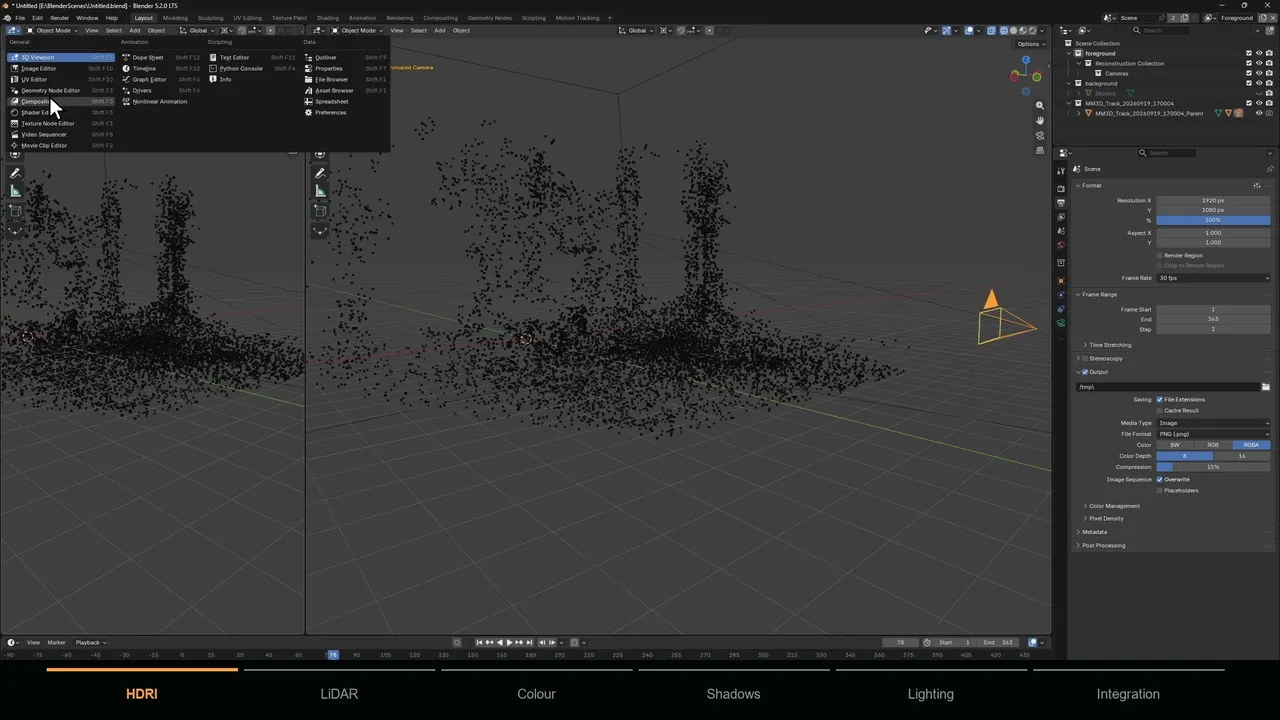
How to display a point cloud in Blender
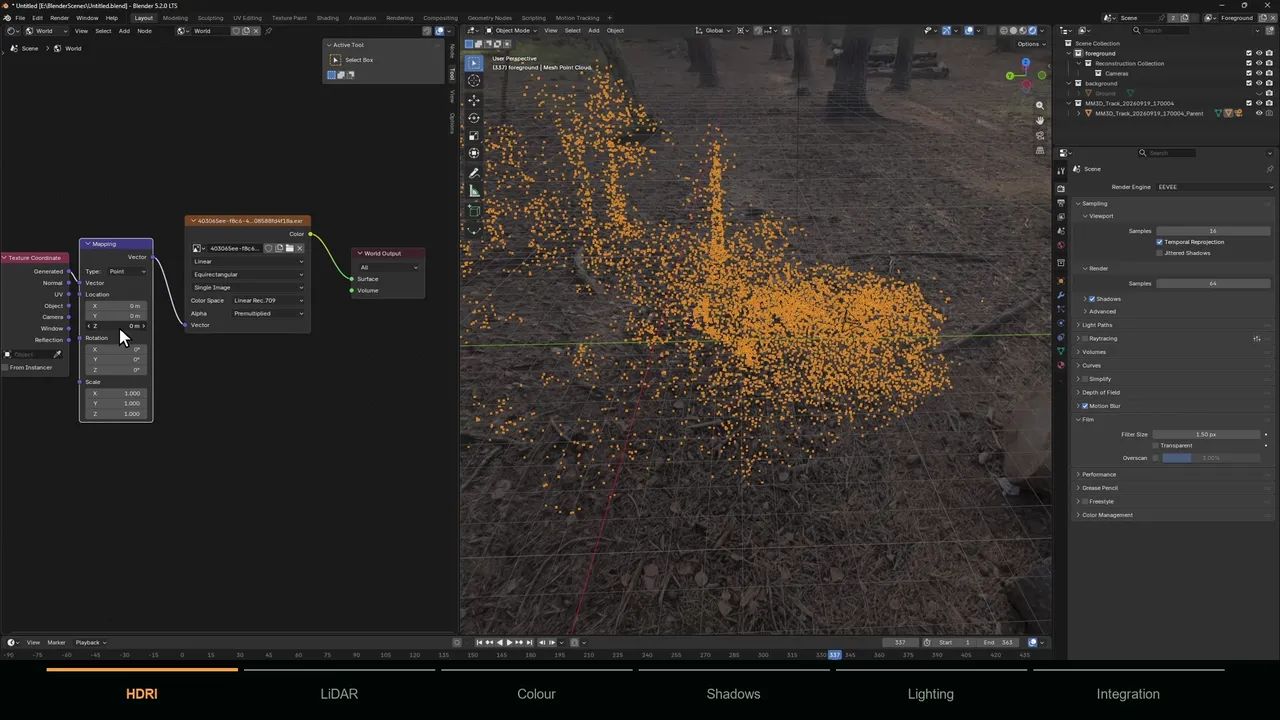
You have two good options, and both keep the colors:
- Convert it. Select the object and use Object > Convert > Point Cloud. Blender 5.x has a real Point Cloud object type whose points are drawn at the size of their
radiusattribute. - Use Geometry Nodes. Add a Geometry Nodes modifier with a Mesh to Points node in Vertices mode and a small Radius, for example 0.01 m, then a Set Material node. This keeps the original mesh untouched, which is handy for the methods below.
For colors, use a material with an Attribute node set to Col connected to Base Color, in Material Preview or Rendered view. For huge clouds, a Merge by Distance node thins dense areas and keeps the viewport responsive.
How to clean a point cloud before meshing
Every meshing method treats each point as real, so floating points become blobs. Ten minutes of cleanup saves an hour of mesh repair.
- Crop to what you need. In Edit Mode, box select with X-ray on and delete everything outside the area of the effect.
- Remove statistical outliers. CloudCompare has an SOR filter under
Tools > Clean > SOR filter; Open3D hasremove_statistical_outlier(nb_neighbors=20, std_ratio=2.0), where a lowerstd_ratioremoves more. - Thin very dense areas with Merge by Distance or a voxel downsample so the mesh does not get uneven detail.
- Align and scale first. Put the floor on the XY plane and give the scene real-world scale. The voxel sizes below are in scene units, so arbitrary units make every setting a guess.
If a cloud from a camera solve is fundamentally wrong, cleanup will not save it; what makes footage good for camera tracking explains why.
Method 1: Point cloud to mesh with Geometry Nodes
This is the quickest method that never leaves Blender. The Points to Volume node puts a fog sphere around every point, and Volume to Mesh builds a surface where that fog crosses a threshold.
- 1 Turn vertices into points
In a Geometry Nodes modifier, connect Group Input to a Mesh to Points node in Vertices mode.
- 2 Build the volume
Add Points to Volume. Set Resolution Mode to Size and start with a Radius of about twice the typical gap between points and a Voxel Size around half the radius. Small voxel sizes get slow quickly, so raise detail gradually.
- 3 Make the surface
Add Volume to Mesh and connect it to Group Output. Lower the Threshold to grow the surface and fill gaps, raise it to shrink it. Adaptivity reduces the face count where there is little detail.
- 4 Apply and tidy
Apply the modifier. Then add a Smooth or Corrective Smooth modifier, Decimate if the face count is high, and delete small floating pieces (select one face, Select Linked, delete).
You get a closed, slightly blobby skin around the points. A scanned floor becomes a thin slab with a top and a bottom, and detail is limited by the voxel size. Fine for a shadow catcher, holdout or collision proxy, not for close-up texturing.
Method 2: Poisson reconstruction in MeshLab, CloudCompare or Open3D
Screened Poisson reconstruction is the standard way to turn a point cloud into a smooth, watertight mesh. It fits a surface to the points and their normals, so the first step in every tool is computing normals that point consistently outward. Export the cloud from Blender with File > Export > Stanford (.ply), or use the original file.
MeshLab
Run Filters > Normals, Curvatures and Orientation > Compute normals for point sets, then Filters > Remeshing, Simplification and Reconstruction > Surface Reconstruction: Screened Poisson. Reconstruction Depth (default 8) sets the detail; each step doubles the maximum grid resolution per axis, so memory and time climb fast. MeshLab's tooltip suggests raising Minimum Number of Samples from 1.5 to 15 or 20 for noisy points. MeshLab is free.
CloudCompare
Compute normals with Edit > Normals > Compute (Minimum Spanning Tree orientation helps if directions look random), then run the PoissonRecon plugin with octree depth as the main setting. It can output a density value; filter low-density triangles with Edit > Scalar Fields > Filter by Value to remove surface invented where there were no points. CloudCompare is free and open source.
Open3D (Python)
The Open3D surface reconstruction tutorial covers the whole script. Load with pcd = o3d.io.read_point_cloud('cloud.ply'), call pcd.estimate_normals() and pcd.orient_normals_consistent_tangent_plane(100), then mesh, densities = o3d.geometry.TriangleMesh.create_from_point_cloud_poisson(pcd, depth=9). Convert the densities with densities = np.asarray(densities), remove weakly supported vertices with mesh.remove_vertices_by_mask(densities < np.quantile(densities, 0.01)) and save with o3d.io.write_triangle_mesh('mesh.ply', mesh).
Clouds from COLMAP's dense pipeline can also go through its own poisson_mesher or delaunay_mesher commands; see COLMAP to Blender. Import the finished mesh with the same axis settings you exported with, so it lands on the original points.
Method 3: Shrinkwrap a grid onto the points
For a floor under a CG object, a road or a wall, clean even topology often matters more than every bump. A grid gives you that:
- 1 Add a grid
Add a Grid or a subdivided Plane, scale it to cover the area and place it just above the floor points.
- 2 Add Shrinkwrap
Add a Shrinkwrap modifier with the point cloud object as Target. Use Nearest Vertex: the other wrap methods need faces on the target, and a point cloud has none.
- 3 Smooth the noise
Add a Smooth or Corrective Smooth modifier after the Shrinkwrap so single noisy points do not pull spikes into the grid.
- 4 Optionally project
For a cleaner result, make a rough surface with Method 1 first, then shrinkwrap the grid onto that mesh with the Project method along Z. The grid keeps its even topology and follows the averaged surface.
The Remesh modifier rebuilds an existing surface, and a points-only object has none. It helps afterwards: Remesh in Voxel mode on a Method 1 or Poisson result gives even faces for sculpting or retopology.
Method 4: MotionMaster 3D Mesh Generation and Point Cloud Surface
If your points come from tracking footage, MotionMaster 3D builds the mesh in the same pipeline, aligned to the solved camera. Heavy Tracking solves the camera and a sparse cloud (Standard). With Max, enable Undistort and Dense for a dense colored point cloud, then run Mesh Generation at Low (about 100K faces), Medium (about 500K), High (about 1.5M), Ultra (about 5M) or Custom. The mesh is only as good as the dense cloud, so fix a noisy cloud at the source.
For floors, roads, walls, facades and terrain, Point Cloud Surface (Max) is the controlled version of Method 3. It works on any Blender Point Cloud object or vertex mesh, including a PLY imported from elsewhere, and builds a 2.5D surface over a fitted plane with a hard vertex budget and Triangles, Quad Dominant or Grid Quads topology. Optional density-adaptive detail spends more vertices where there are more points. Overhangs and multiple depth layers need separate surfaces.
Before either, Point Cloud Cleanup (Max) removes floating points, and the Aligner puts the floor on the ground plane. 3D reconstruction in Blender shows how the pieces fit together.
Which point cloud to mesh method should you use?
| You need | Best method | Why |
|---|---|---|
| A quick shadow catcher or holdout | Method 1: Geometry Nodes | Stays in Blender, minutes to set up |
| A clean, closed mesh of an object or scan | Method 2: Poisson | Smoothest result, density trimming for open areas |
| A floor, road or wall with even topology | Method 3: Shrinkwrap grid, or Point Cloud Surface | Controlled topology, ignores noise |
| Geometry from tracked footage, aligned to the camera | Method 4: MotionMaster 3D | Camera, cloud and mesh from one solve |
The mesh usually ends up as a shadow catcher, a holdout or a projection surface. Adding 3D objects to tracked footage shows how to use it, and camera tracking vs 3D reconstruction explains when a shot needs geometry at all.